Importing contacts from Linkedin
Last updated 5 days ago
Click the Me icon at the top of your LinkedIn homepage (or click here and skip to step 5).
Select Settings & Privacy from the dropdown.
Click Data privacy on the left pane.
Under the How LinkedIn uses your data section, click Get a copy of your data.
Select Download larger data archive, including connections, verifications, contacts, account history, and information we infer about you based on your profile and activity.
Select Request archive.
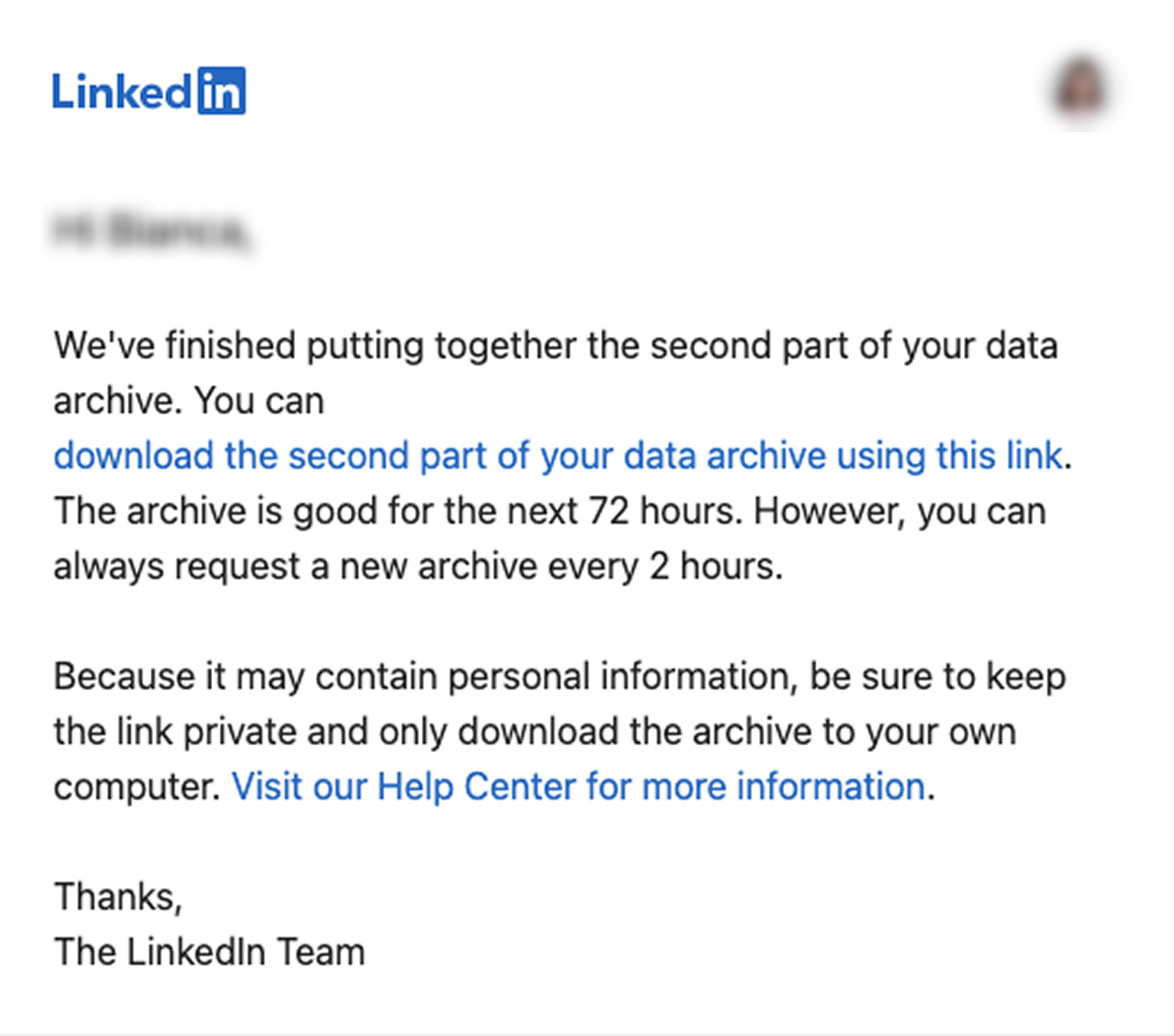
You’ll receive an email to your Primary Email address which will include a link where you can download your data.
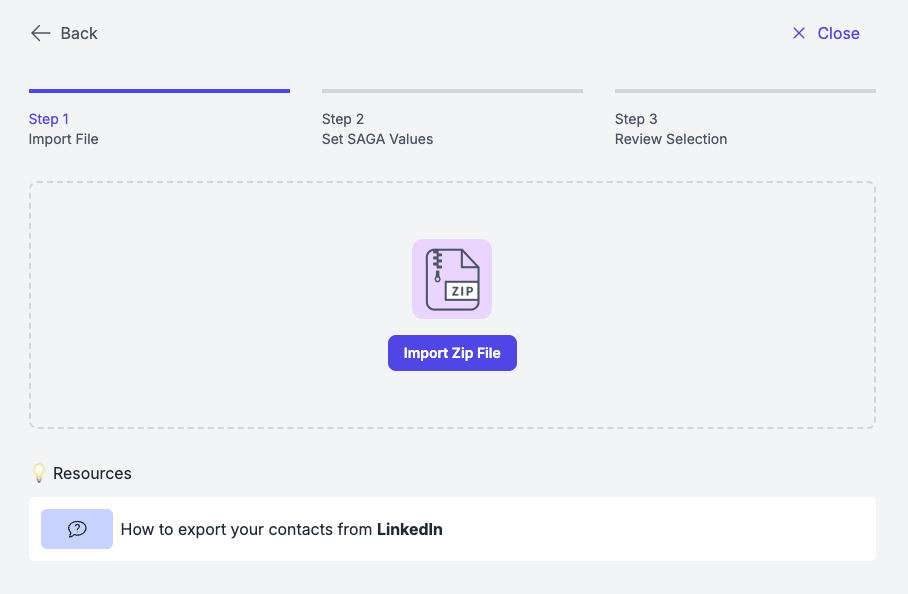
Step 8: Import your Contacts in SAGA
Once you have the file, Navigate back to SAGA and open the import page.
Select Linkedin as the import type
Select the ZIP File you just downloaded to upload it into SAGA.
SAGA will automatically extract the files that can be imported.
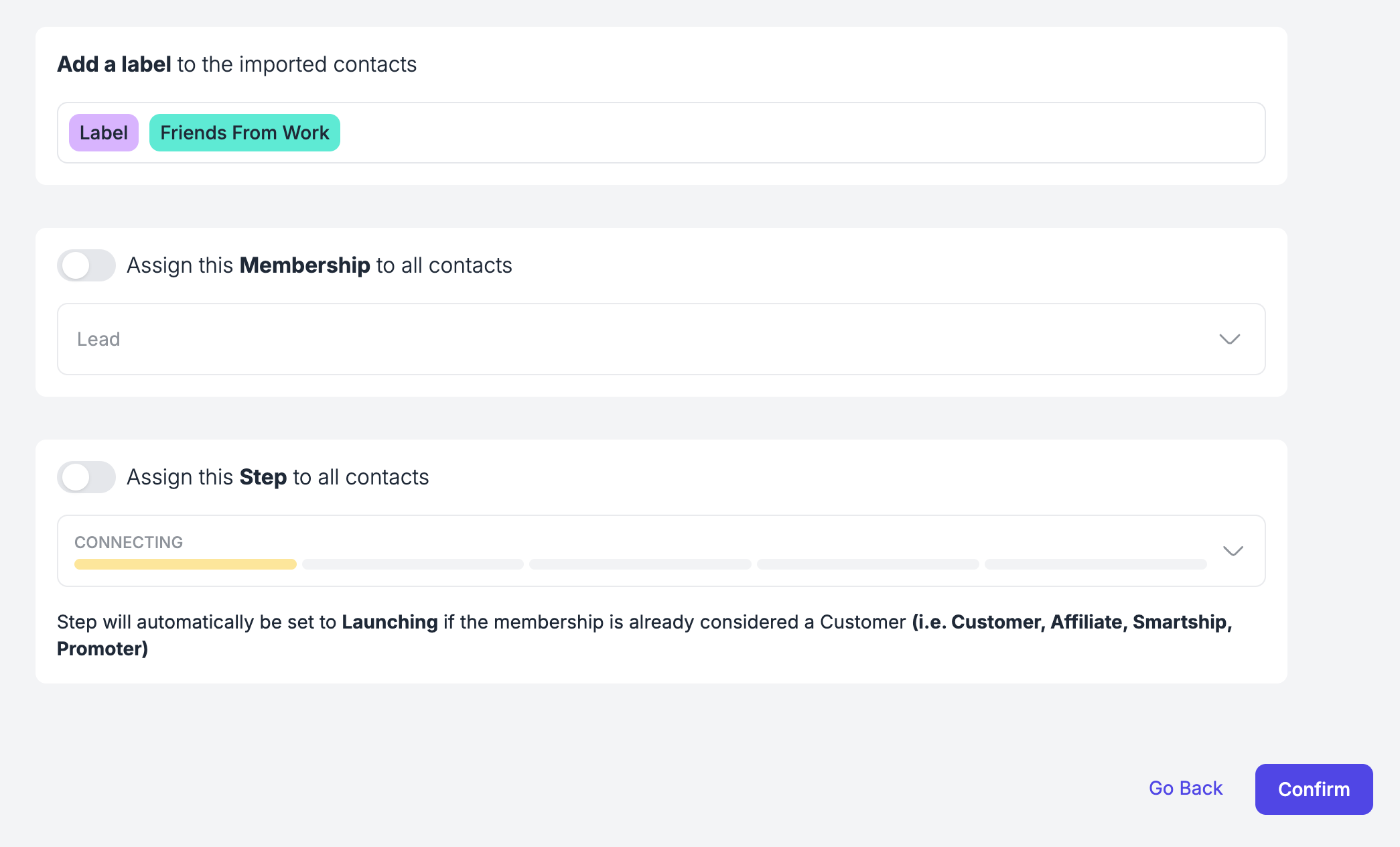
Step 9: Assign other Info
Assign 1 or more labels to the contacts you are importing (optional)
Assign a specific Membership or a Step to the contacts you are importing (optional)
NB: if some of the contact you are importing exist already in SAGA, these information are going to be overwritten.
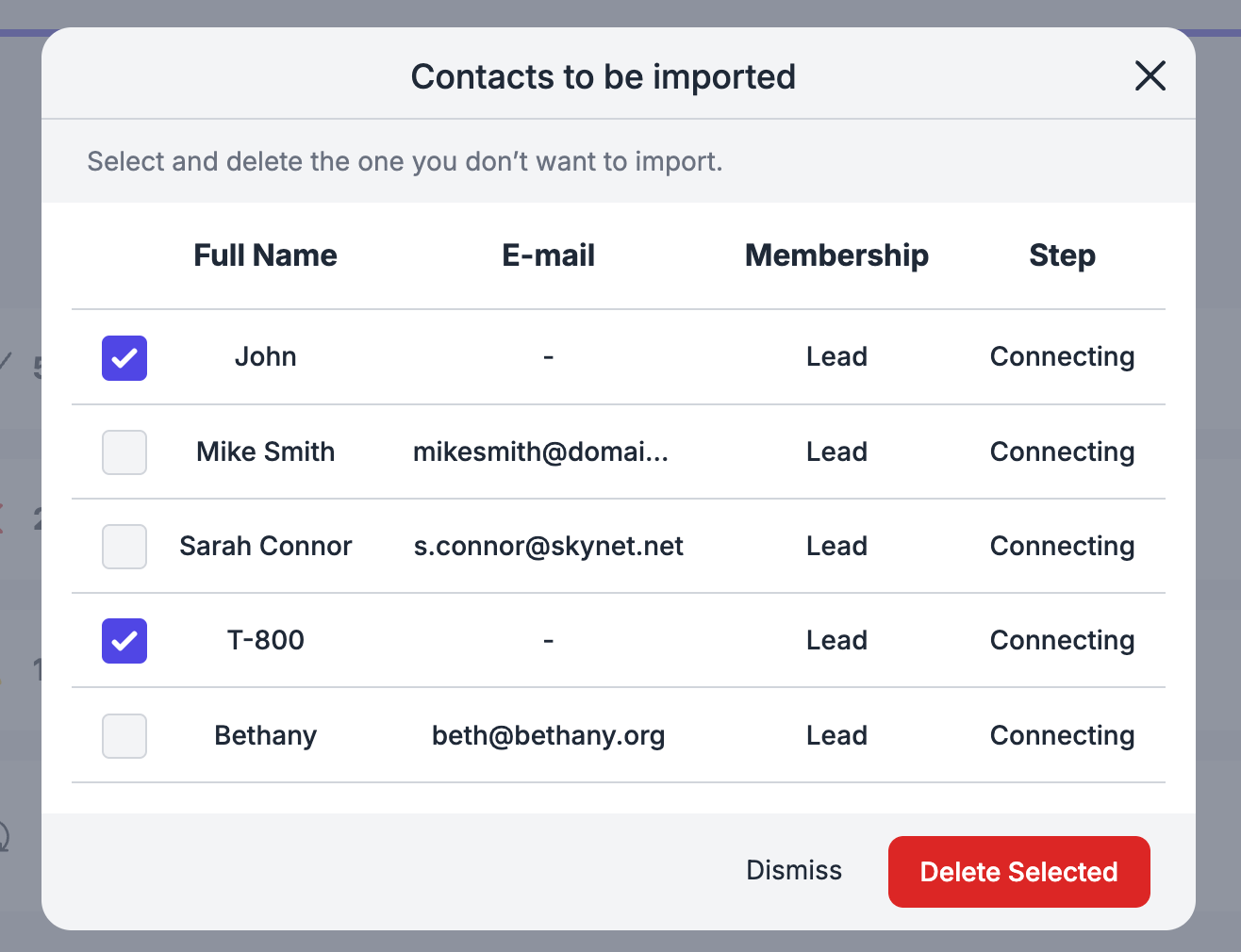
Step 10: Keep or Delete Contacts
Check your import recap. You’ll see:
✅ Contact to import
Merging Criterias
You can go through the list, select some and remove them, if you don’t want to upload them.
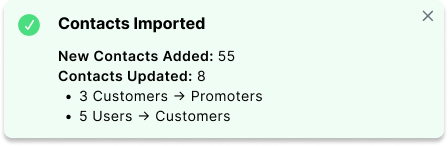
Step 11: Well Done!
Once you are done, a pop-up will appear summarizing the actions you have just taken.
💬 Need Help?
If you need assistance with importing contacts or have questions about the process:
Support Centre: Need help? Start a chat with the Fibi AI Agent in your SAGA. If they can’t help, a human team member will take over.
Book a Call: Schedule a demo with our team