Import CSV Contacts
Import your contact data from CSV files into SAGA. Supports Excel, Google Sheets, and all major spreadsheet formats. Complete guide with step-by-step instructions, field mapping, and troubleshooting tips.
Last updated 5 days ago
Here an example - you can use this file as a template:
contact_pipeline_template.csv
1.1 KB• Spreadsheet
📂 Learn How to Set Up your CSV
Before importing your contacts, ensure that your CSV file is properly formatted. Follow these guidelines to set up your CSV file correctly:
Use a Spreadsheet Program: You can create your CSV file using popular spreadsheet programs like Excel, Google Sheets, or OpenOffice Calc.
Add Headers: Ensure your CSV file has headers for each column. Common headers include "First Name," "Last Name," "Email," "Mobile Phone," etc.
Remove Extra Data: Make sure there is no extra data above the header line in your CSV file. This can interfere with the import process.
Fill In Your Data: Enter your contact information into the appropriate columns.
Save as .CSV: Once your file is complete, save it as a CSV file (.csv). This ensures compatibility with the import process
Upload Your File: Finally, upload your CSV file by selecting it from your device during the import process.
Note that the file size should not exceed 10MB for successful upload.
▶️ What is a CSV and how to create
Upload Your Contacts File
Seamlessly transfer all your existing contacts to your SAGA Contacts. Never lose track of any of them as you bring them together in one convenient place
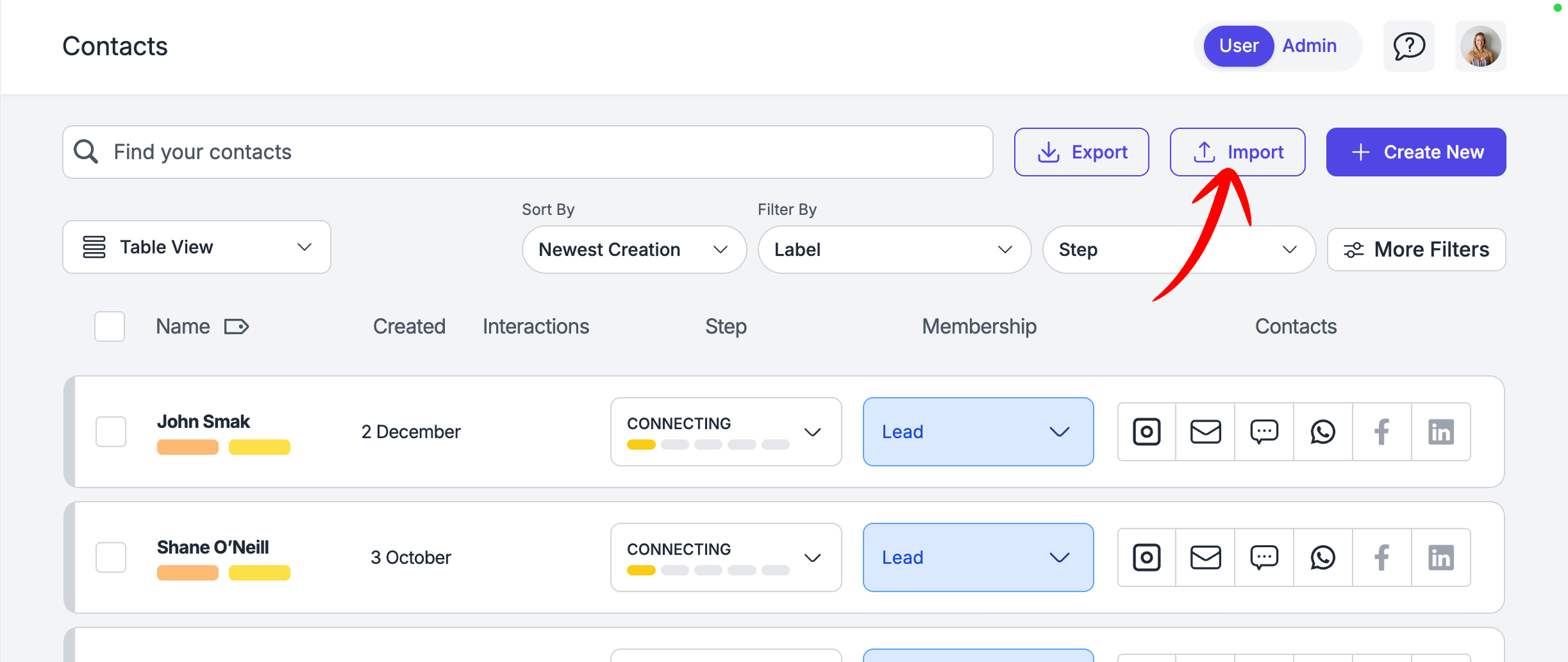
Step 1: Navigate to Contacts and Import
Go to your Contacts Page and click on "Import."
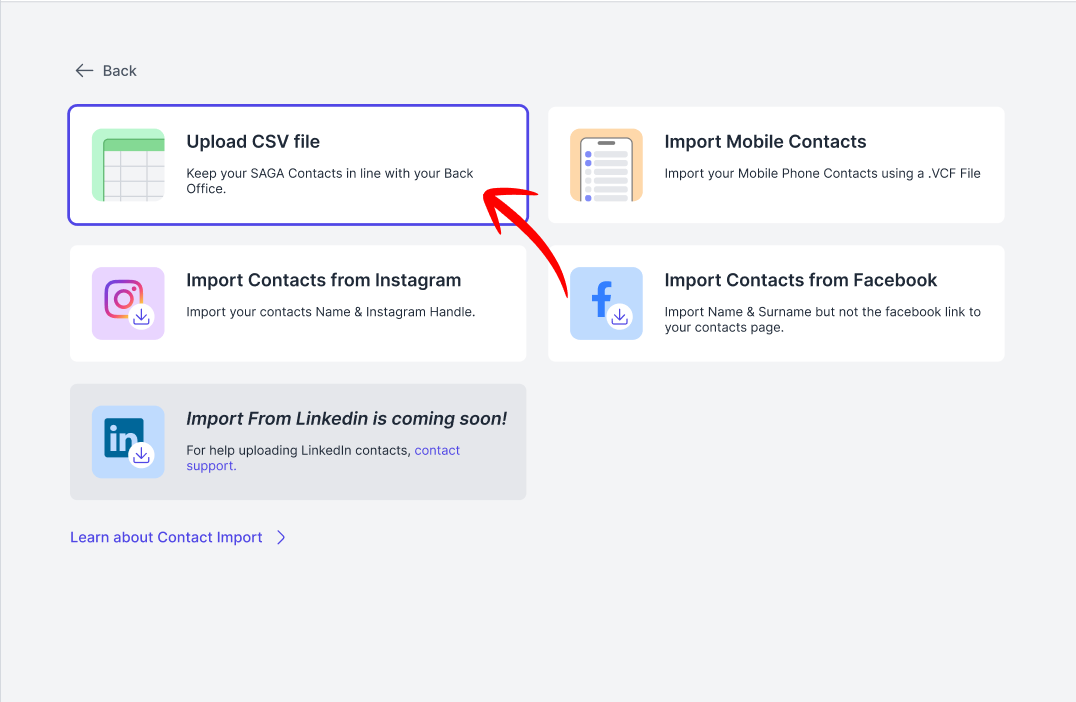
Step 2: Choose Method
Click on “Upload CSV File”
Step 3: Upload Your File
Navigate through your files and select a CSV one!
Make sure the file is formatted correctly, with the columns named properly.
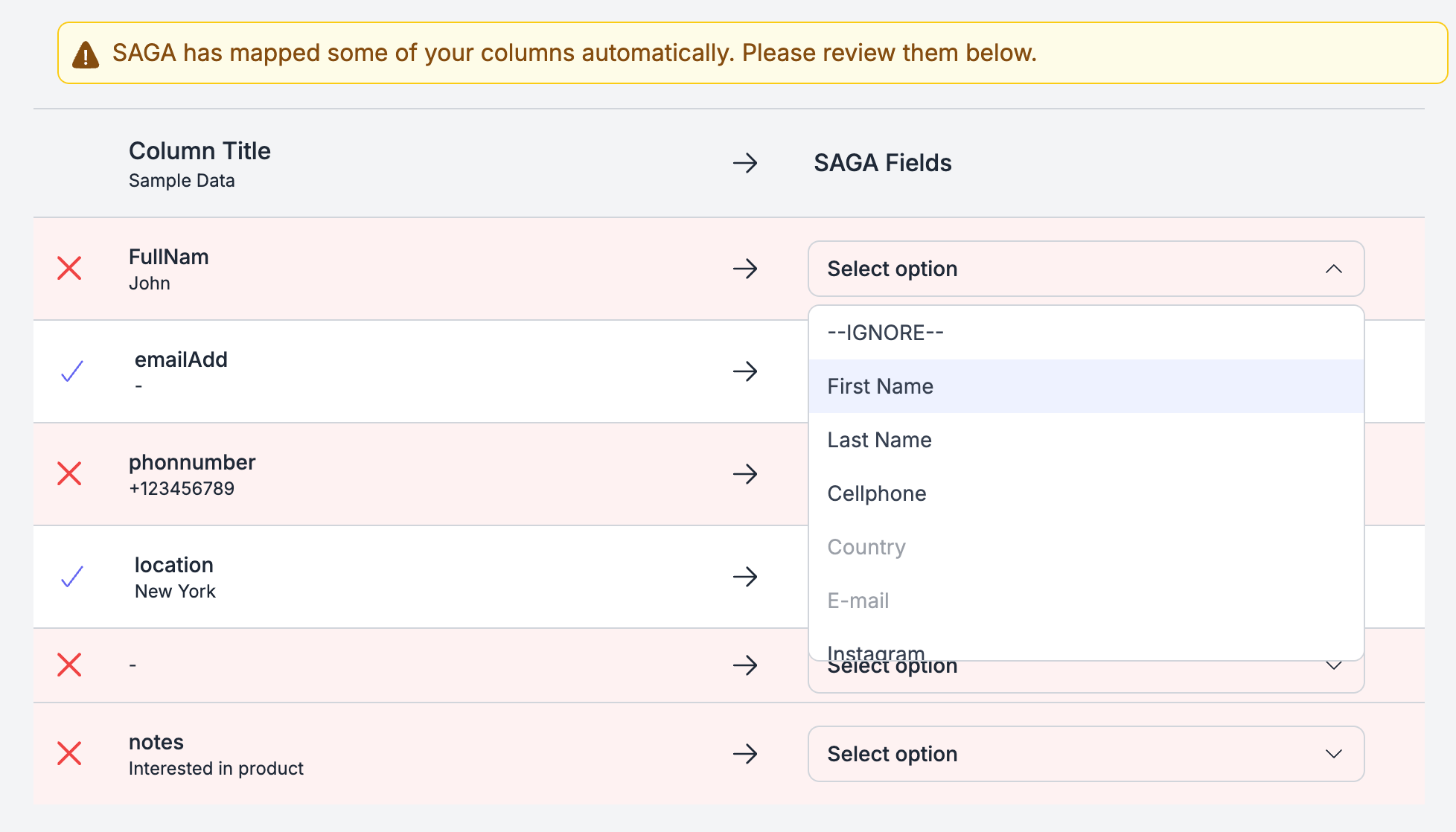
Step 3: Map Your Contacts
Check the fields that SAGA assigned automatically and map the ones that are missing: [Example: Import Title: email | SAGA Fields: email]
If you don’t need a column, set it to ‘IGNORE’
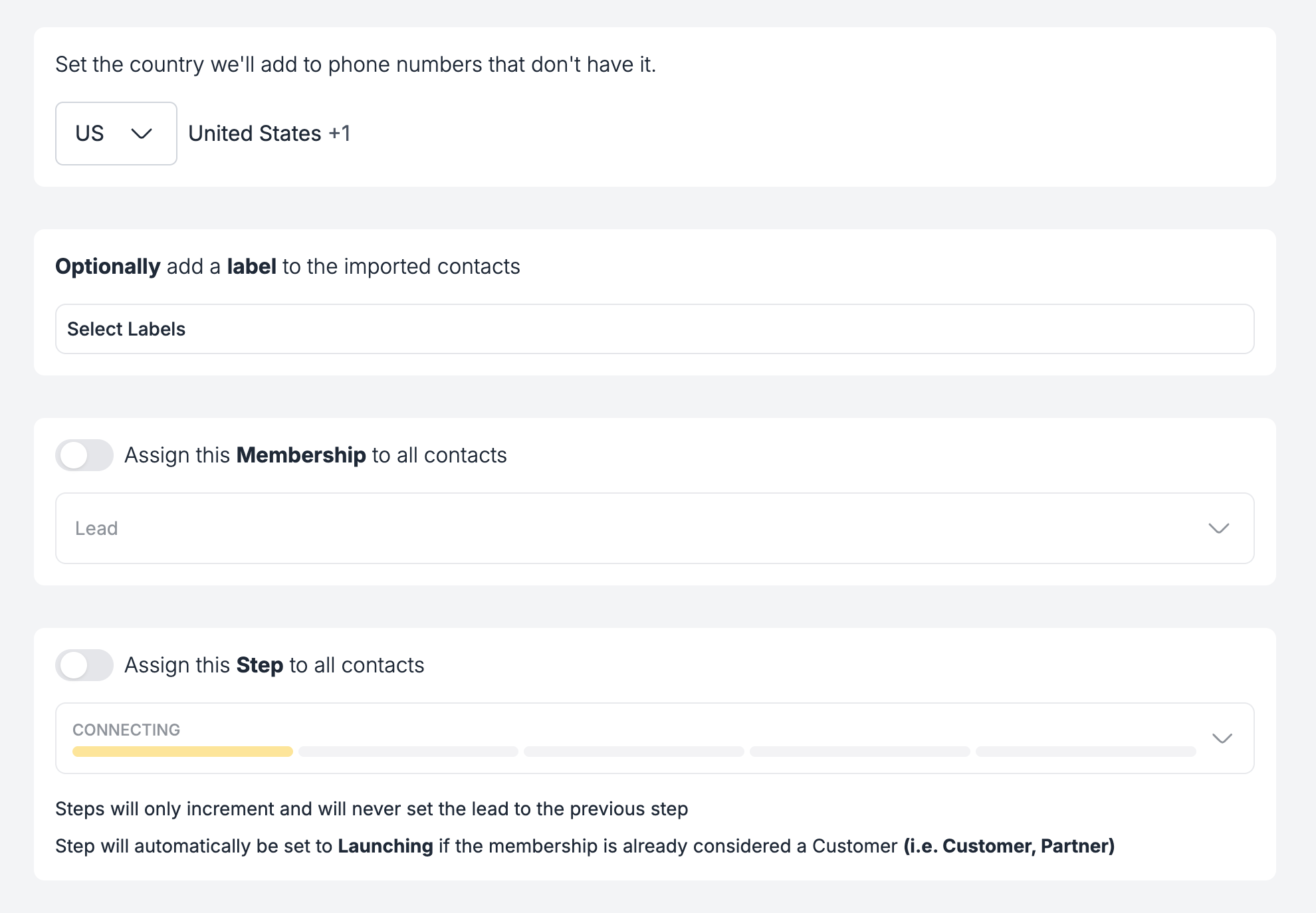
Step 4: Assign other Info
You can optionally:
Assign a country prefix to add to phone numbers that don’t have one already
Assign 1 or more labels to the contacts you are importing
Assign a specific Membership or a Step to the contacts you are importing
NB: if some of the contact you are importing exist already in SAGA, these information are going to be overwritten.
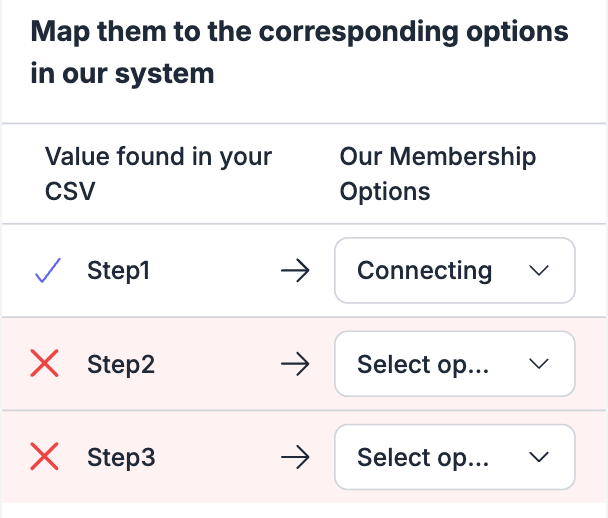
Step 4.1: Map Membership & Step fields
If you mapped one of your columns with membership or step, but the items inside don’t corrispond with the SAGA ones, you’ll be able to connect each of them, in order to not lose that information
For Example:
Gold Tier → SAGA’s “Affiliate” Membership
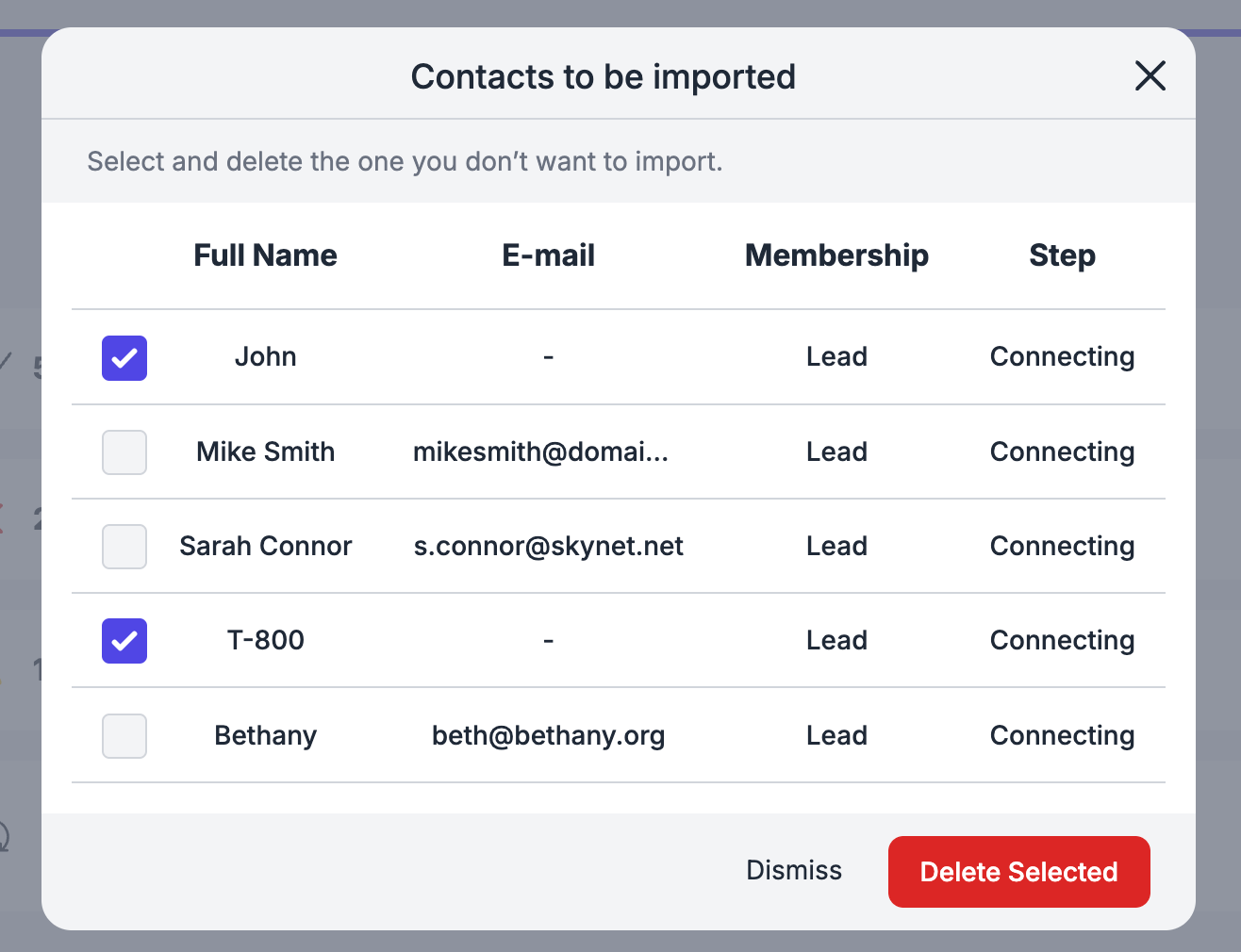
Step 4: Keep or Delete Contacts
Check your import recap. You’ll see:
✅ Contact to import
⚠️ Contacts with missing informations (if any)
❌ Contacts that won’t be imported because they lack the name information (if any)
Merging Criterias
You can go through the list, select some and remove them, if you don’t want to upload them.
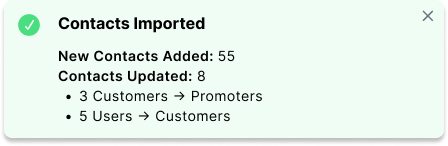
Step 5: Well Done!
Once you are done, a pop-up will appear summarizing the actions you have just taken.
Import CSV Contacts →
💬 Need Help?
If you need assistance with importing contacts or have questions about the process:
Support Centre: Need help? Start a chat with the Fibi AI Agent in your SAGA. If they can’t help, a human team member will take over.
Book a Call: Schedule a demo with our team