Email Broadcast & Mailing List
Email Broadcast lets you send bulk messages to your contact lists efficiently—all in a few clicks.
Last updated 5 days ago
📝 Create an Email Broadcast
Email Broadcast is your communication tool that simplifies and enhances your messaging efforts by enabling you to send messages in bulk to lists created by you. It makes communication easier and more efficient than ever before.
Find Email Broadcast in the Menu's Communication Section. Go to Email Broadcast
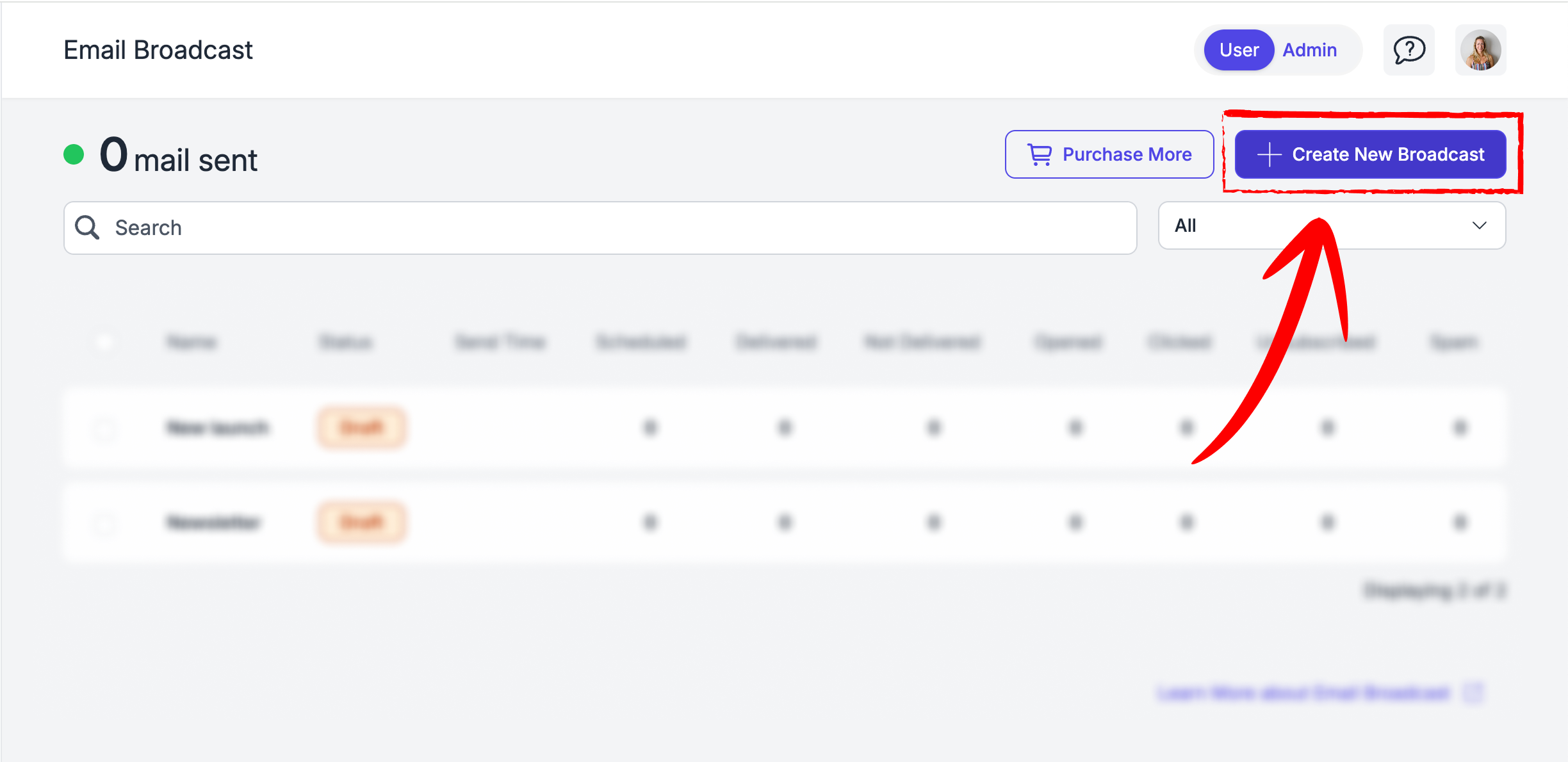
Step 1: Create a New Broadcast
To create a new broadcast, click on the "Create Broadcast" button.
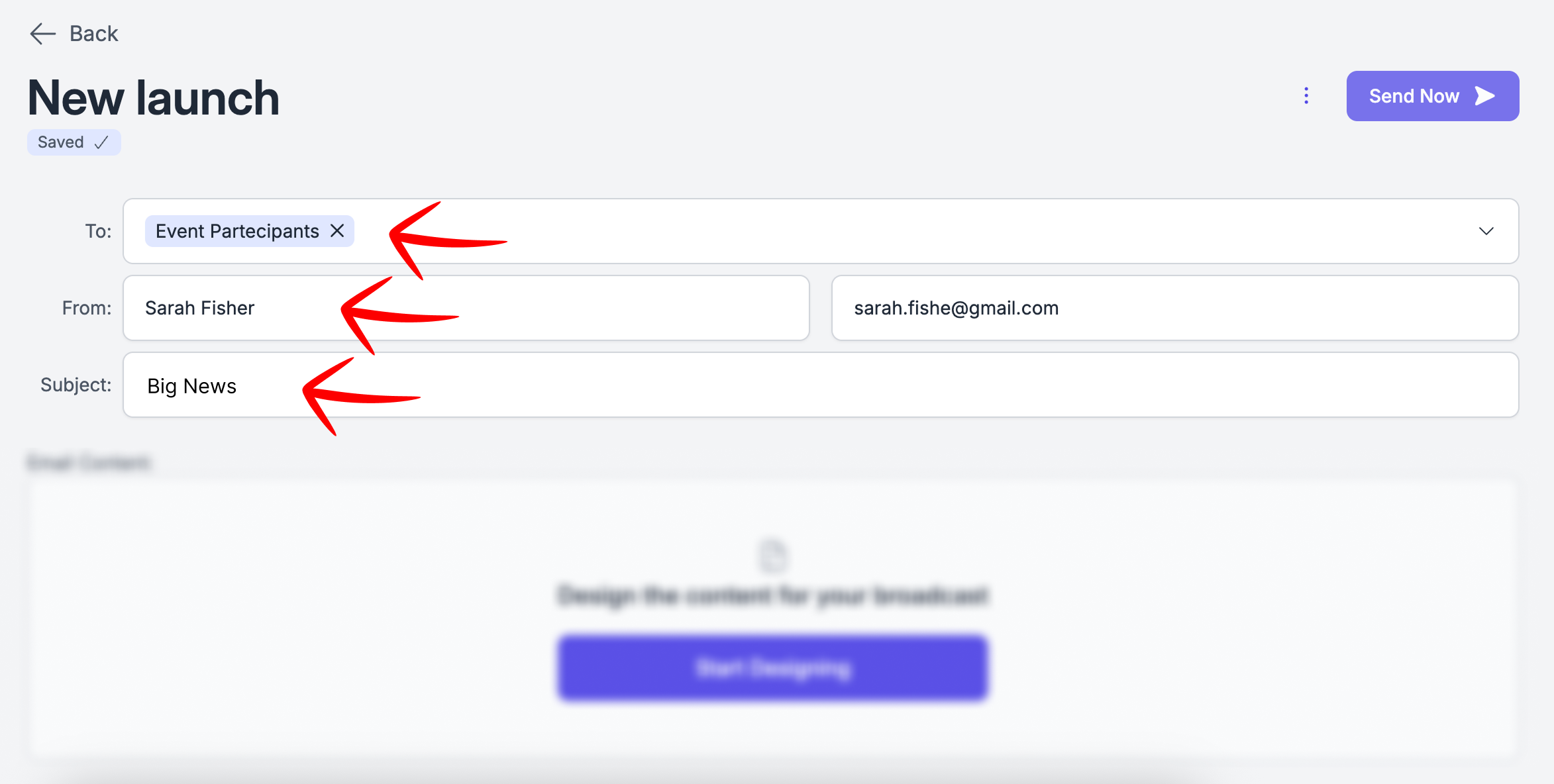
Step 2: Define Recipients, Sender & Subject
Specify the recipients by selecting the mailing lists you've created.
Choose the sender's email address and name.
Enter the subject line for your email.
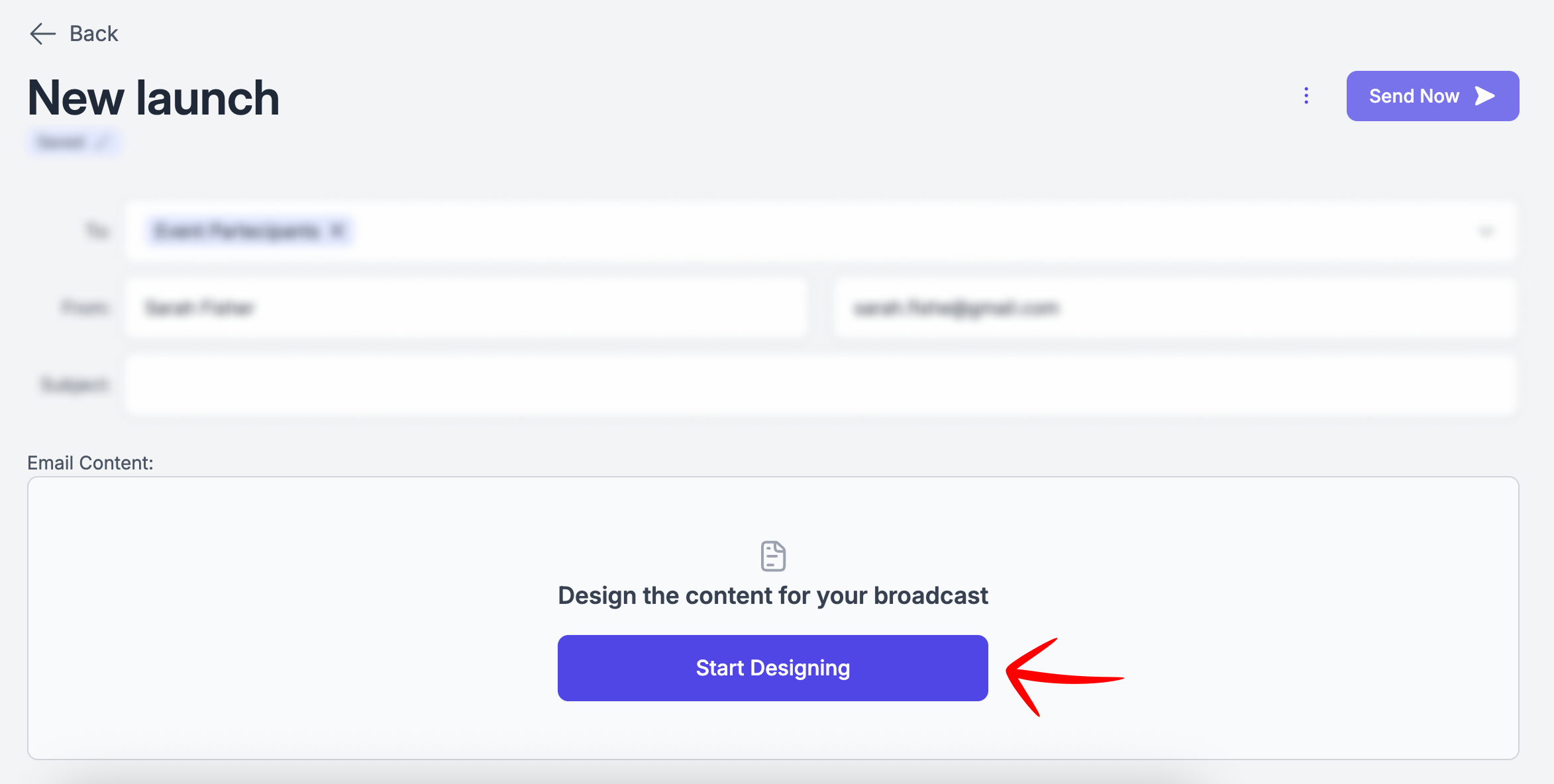
Step 3: Email Content
Craft the content of your email message in the provided editor.
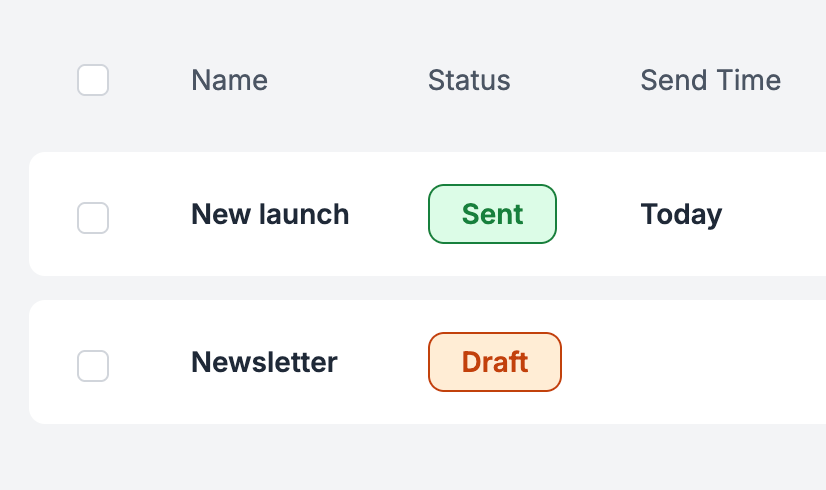
Step 4: Save as Draft or Send
After defining all the necessary details, your broadcast is automatically saved as a draft. You have the option to send it immediately or revisit and edit it later.
However, once sent, the action cannot be undone, so ensure all details are accurate before proceeding.
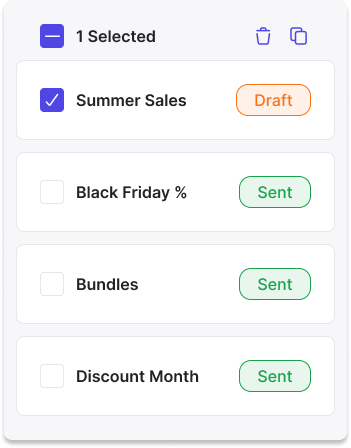
Step 5: Manage Your Broadcasts
On the Broadcast page, you can view and manage all your drafts and sent broadcasts.
🗓️ How to schedule Broadcasts
After Finish setting up your broadcast (content, recipients, subject).
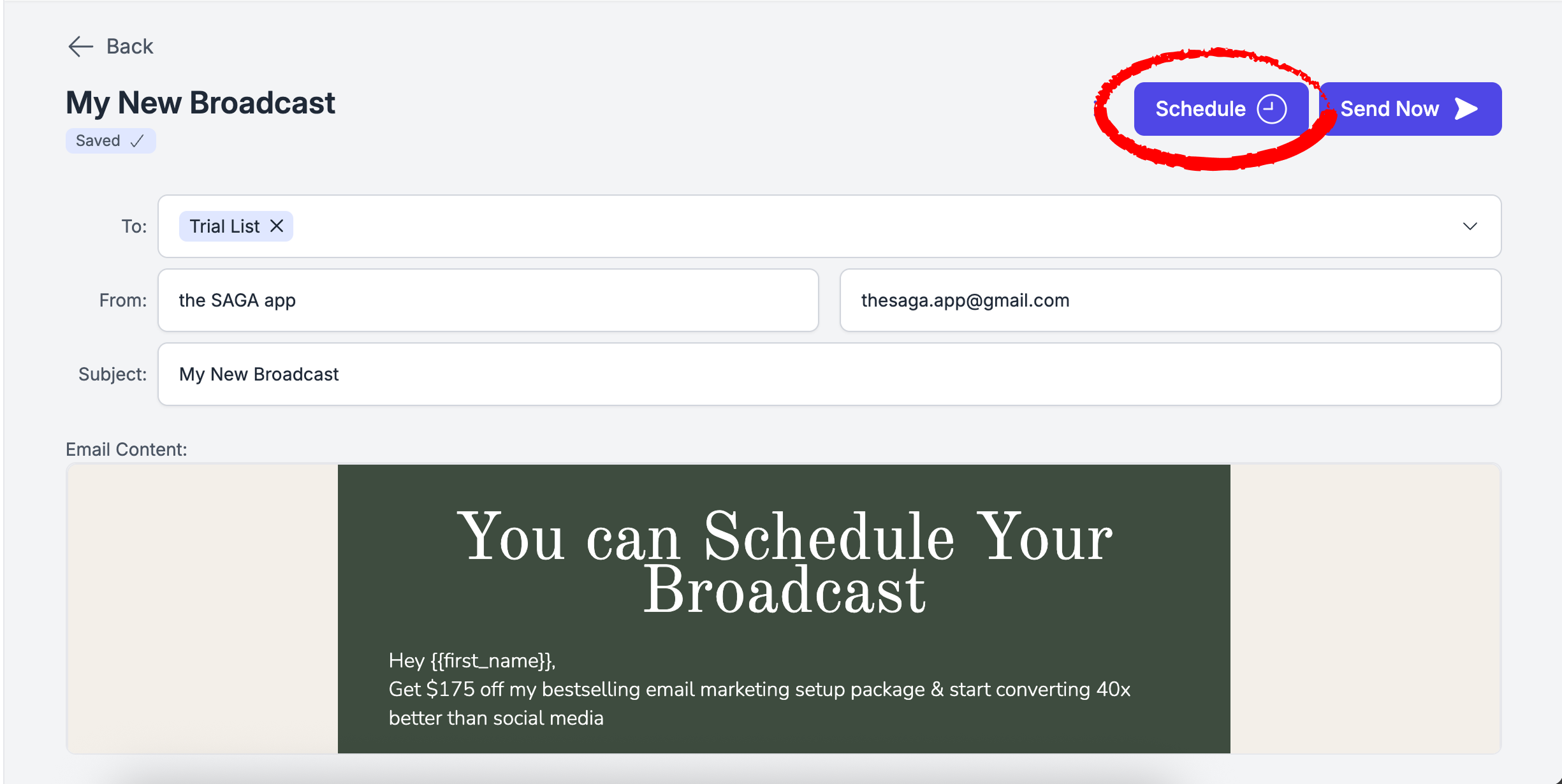
Click
Schedule(top-right).In the calendar popup, choose date & time, then click
Schedule.To reschedule: open the broadcast, click
Reschedule(top-right), pick a new date/time, and confirm.To edit content or move back to draft: click
Unschedule— the broadcast becomes a draft so you can change the email.
Important: you cannot reschedule or cancel a broadcast within 10 minutes of its scheduled send time.
📋 How to Create Mailing Lists
You can choose the type of list you want:
Manual List: You control everything. Add and remove contacts yourself. Best when you have a specific, curated group in mind.
Dynamic List: The list manages itself. You choose one or more labels, and any contact with those labels is automatically added. Every time a label gets assigned to a contact, that contact joins the list instantly, no manual action needed.
Manual List
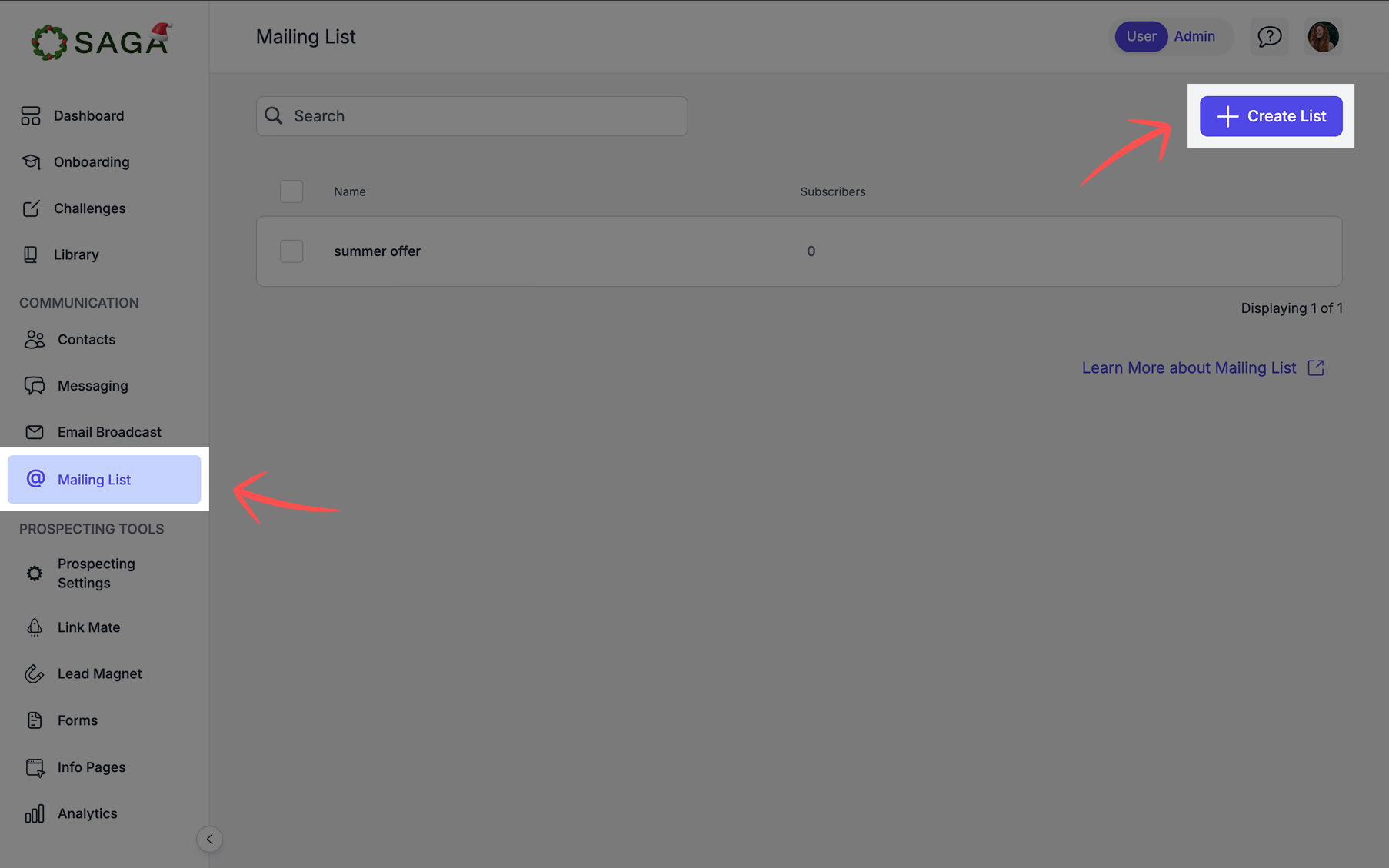
STEP I: Create New List
Navigate to the Mailing Lists section and click the button located in the upper right corner to create your List
You'll then be asked to choose the type of list you want: Select “Manual List”
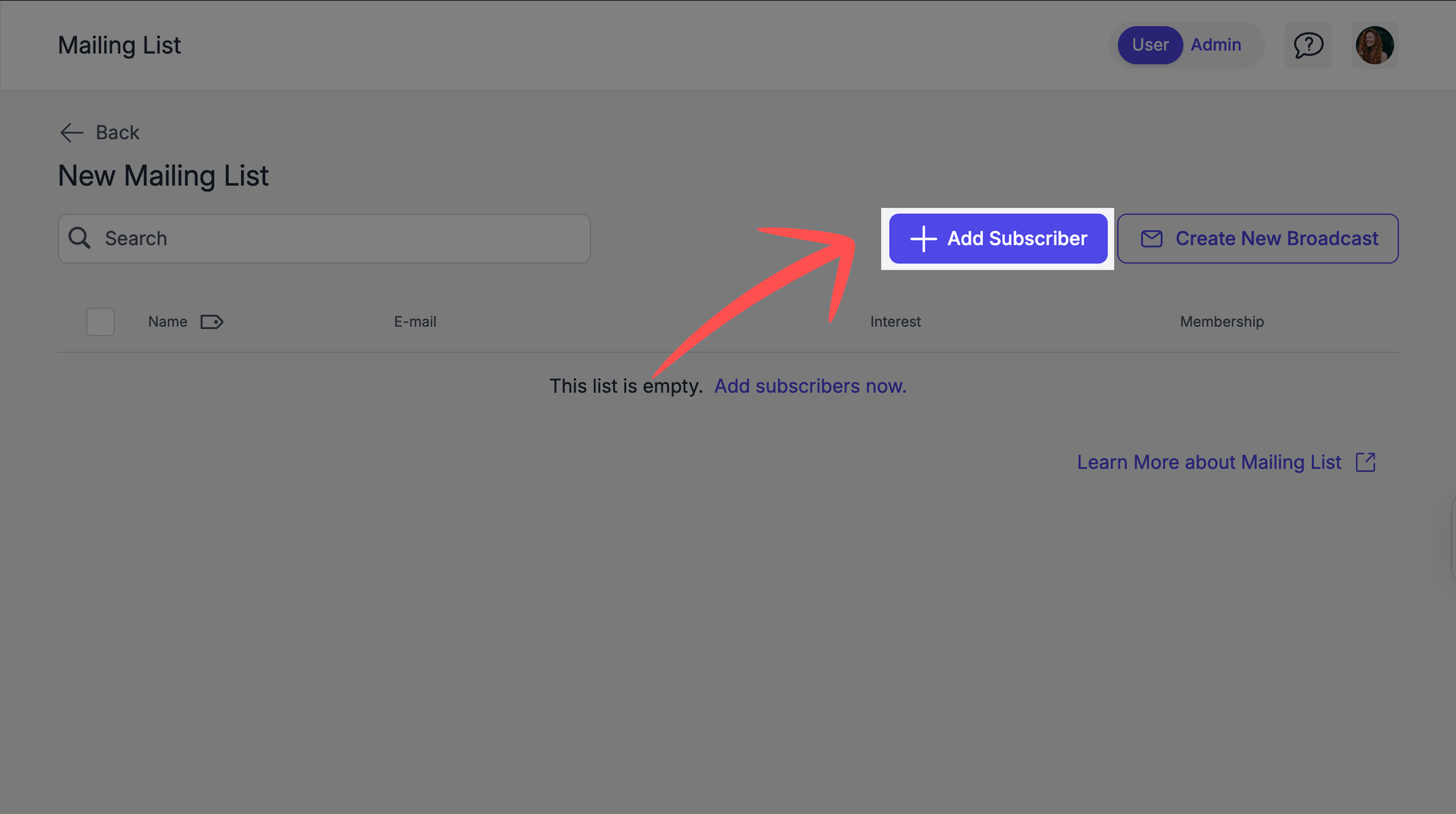
STEP II: Add Subscribers
Once created, add the subscribers to your list from within the List's page.
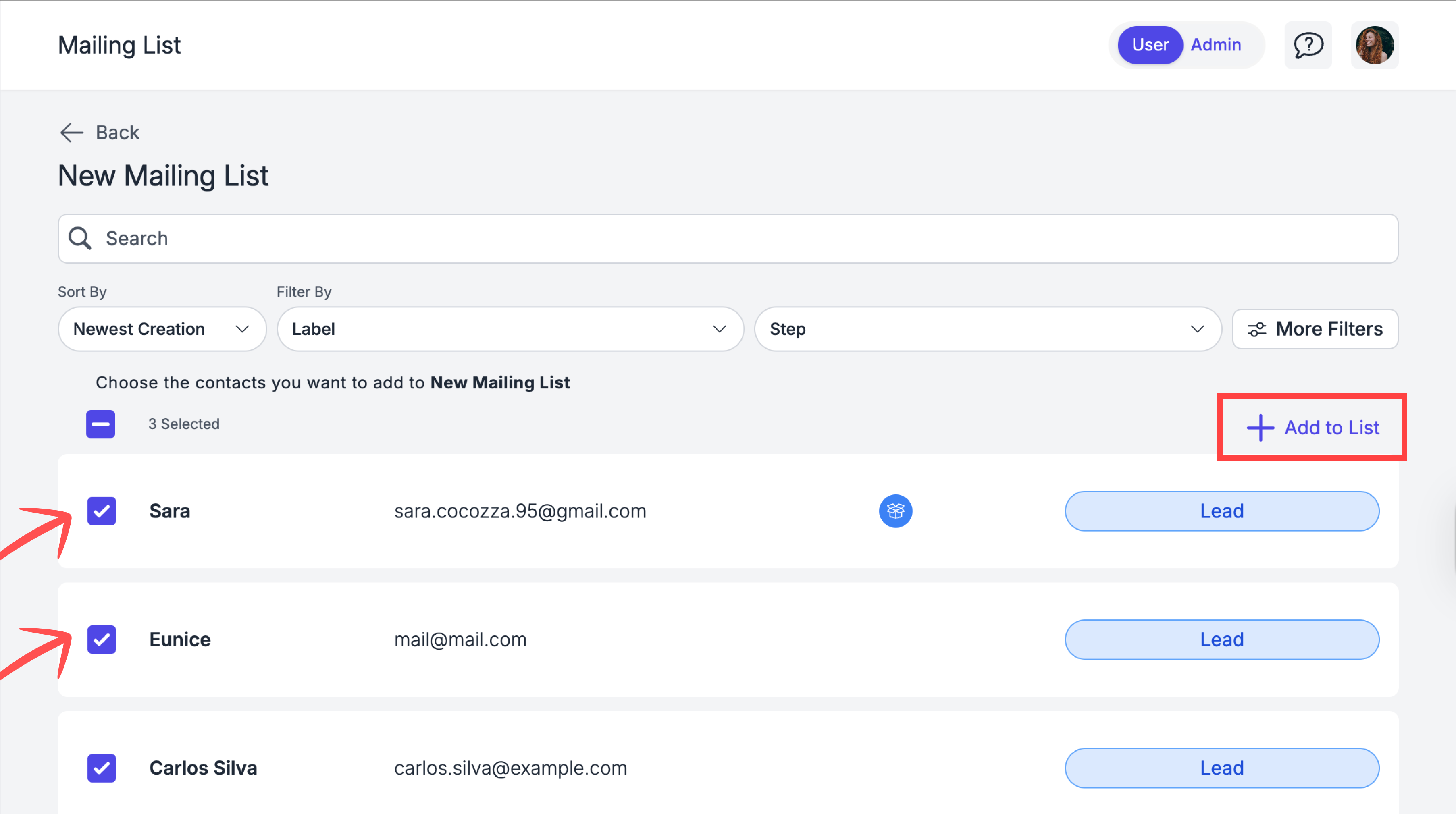
STEP III: Select Contacts and Proceed
Use the Filters (5) to Select the contacts (6) to add in your list directly from within your contact list (7).
Best Practice Tip
Keep your email broadcast clean and regularly update your mailing lists. Removing inactive or unsubscribed contacts ensures better deliverability and engagement rates, maximizing the effectiveness of your email campaigns.
Dynamic List
STEP I: Create New List
Navigate to the Mailing Lists section and click the button located in the upper right corner to create your List
You'll then be asked to choose the type of list you want: Select “Dynamic List”
STEP II: Choose Your Labels
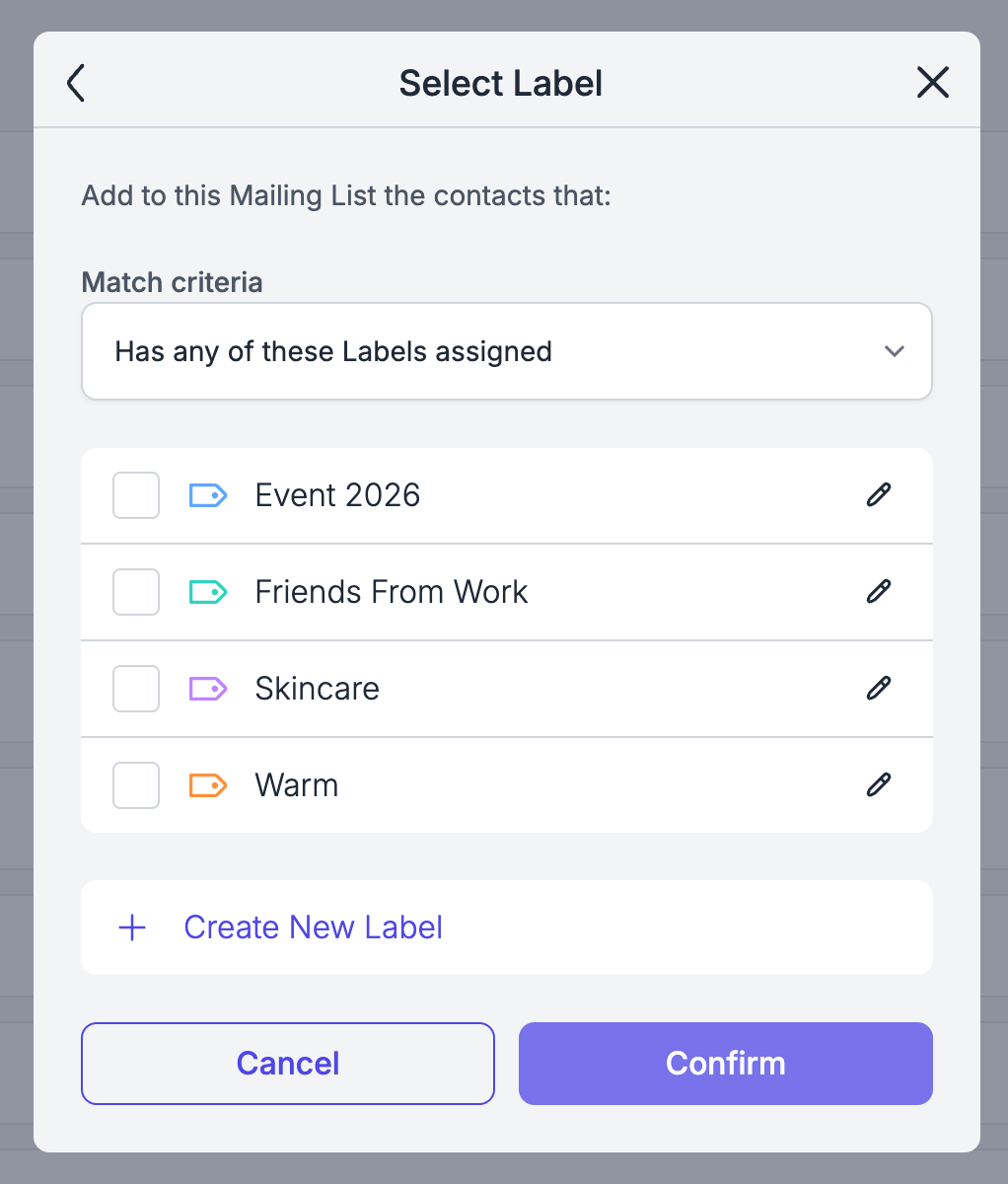
After naming your list, pick the labels that define who belongs to it.
Then choose your matching rule:
Match any label -- a contact only needs one of the selected labels to be added
Match all labels -- a contact must have every selected label to be added
Once saved, the list is immediately populated with all existing contacts that match your rule, and stays in sync automatically from that point on.
📌 Dynamic Lists: Edge Cases Worth Knowing
Label removed from a contact: If a label is removed from a contact, they are removed from the dynamic list automatically.
Using a dynamic list in a scheduled broadcast: The list doesn't "lock in" until the very second you hit send. Even if you schedule a message days in advance, the system checks for any new sign-ups or removals right at the finish line.
💳 Email Subscription & Billing
Subscription Benefits
Each month, your subscription includes a set number of emails. When your subscription renews, your email count resets to that number.
Additional Email Purchase
If you want to buy additional emails, you will need to upgrade your subscription. Don’t worry, you can always switch back to your previous plan anytime.
🛒 Additional Email Purchase
Follow the steps below to level up your broadcasting game
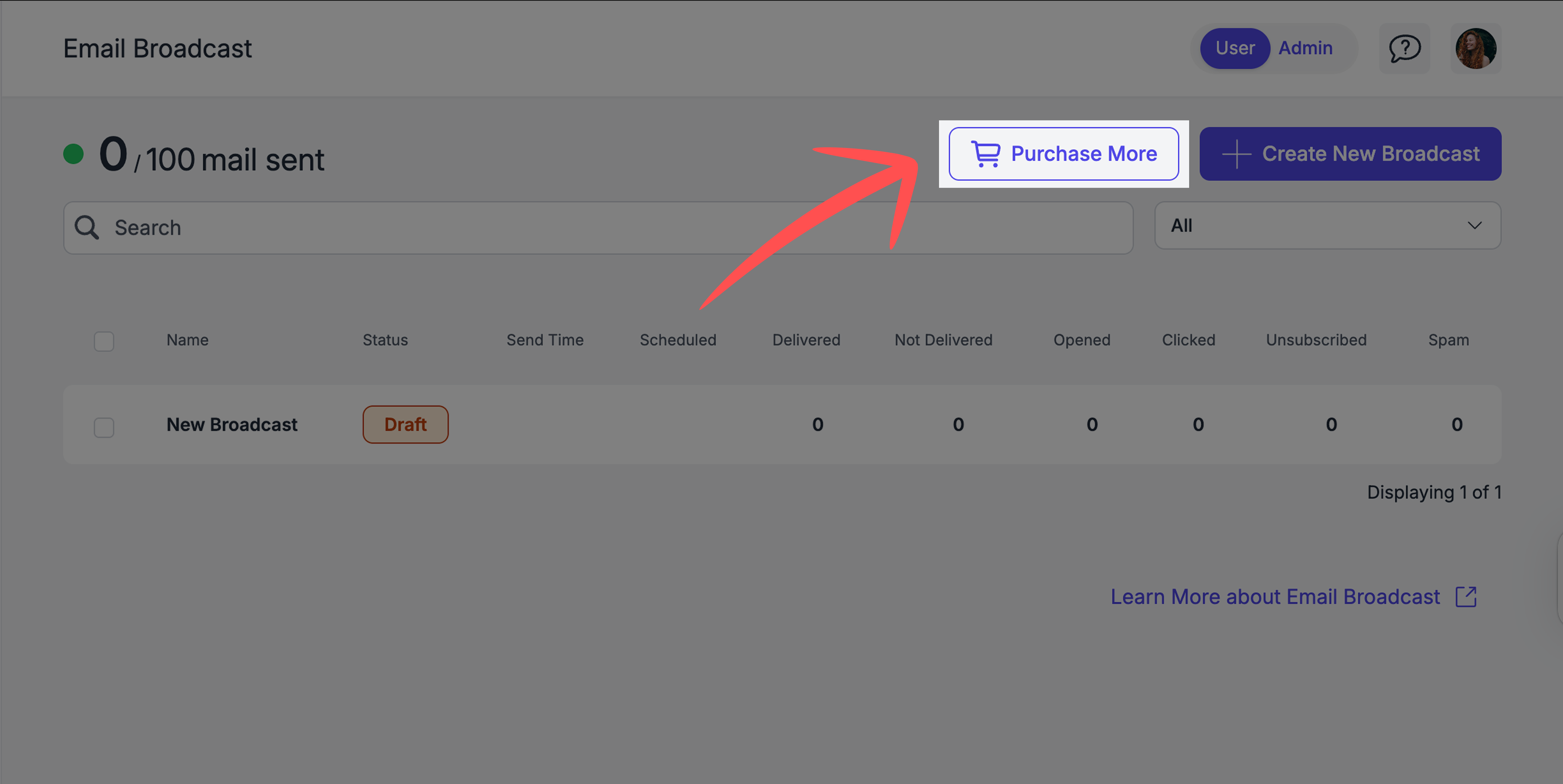
Step 1: Check & Buy
Check your remaining email balance
Click on the cart button to buy more
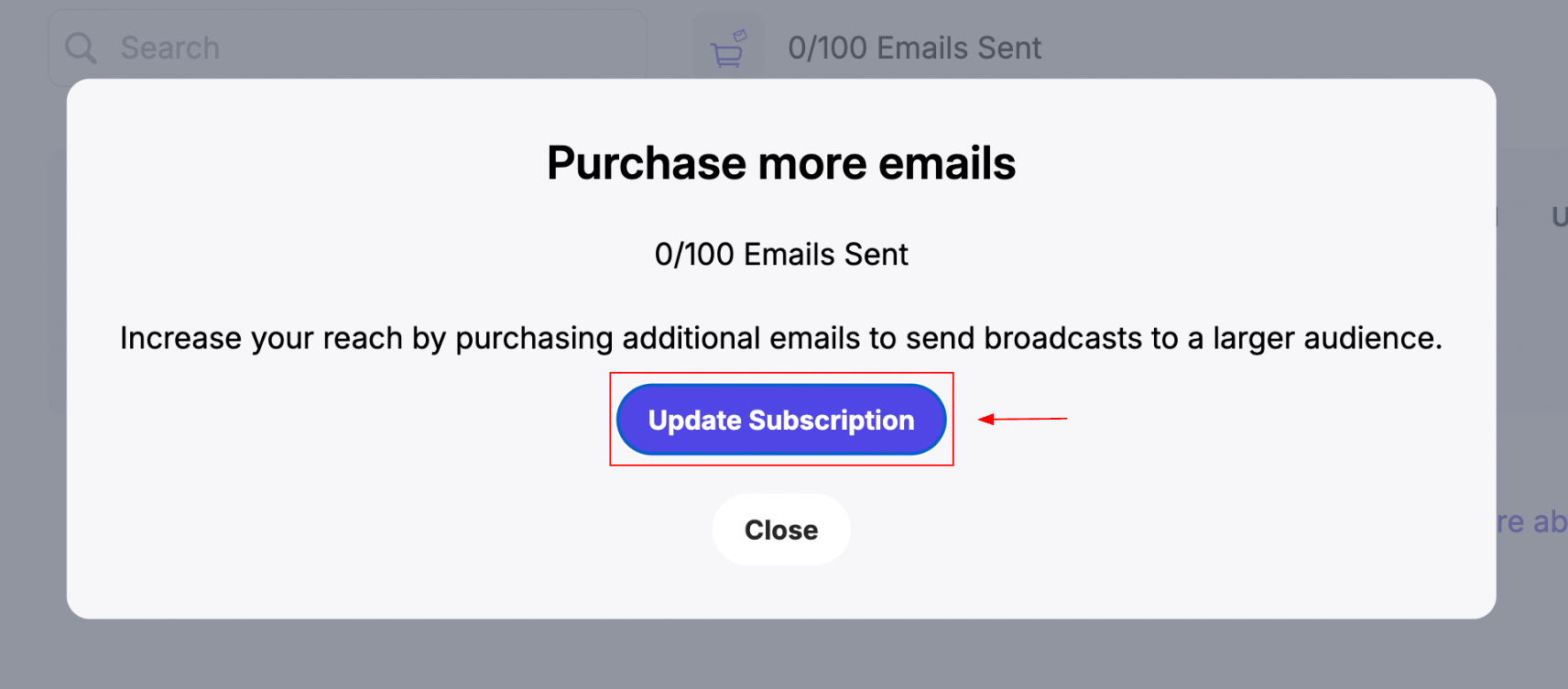
Step 2: Update Subscription
Click on "Update Subscription" to see your options
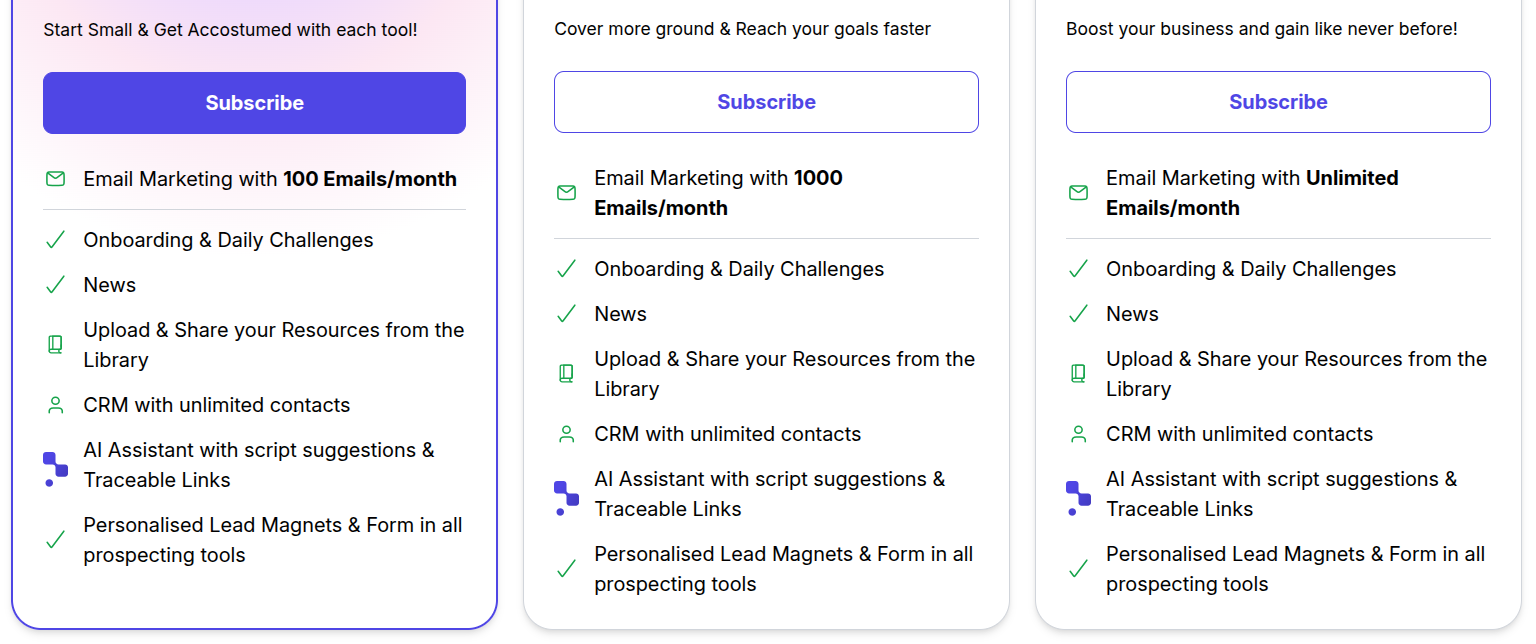
Step 3: Choose your Plan
Pick one of the available plans and then, click "Subscribe" to proceed
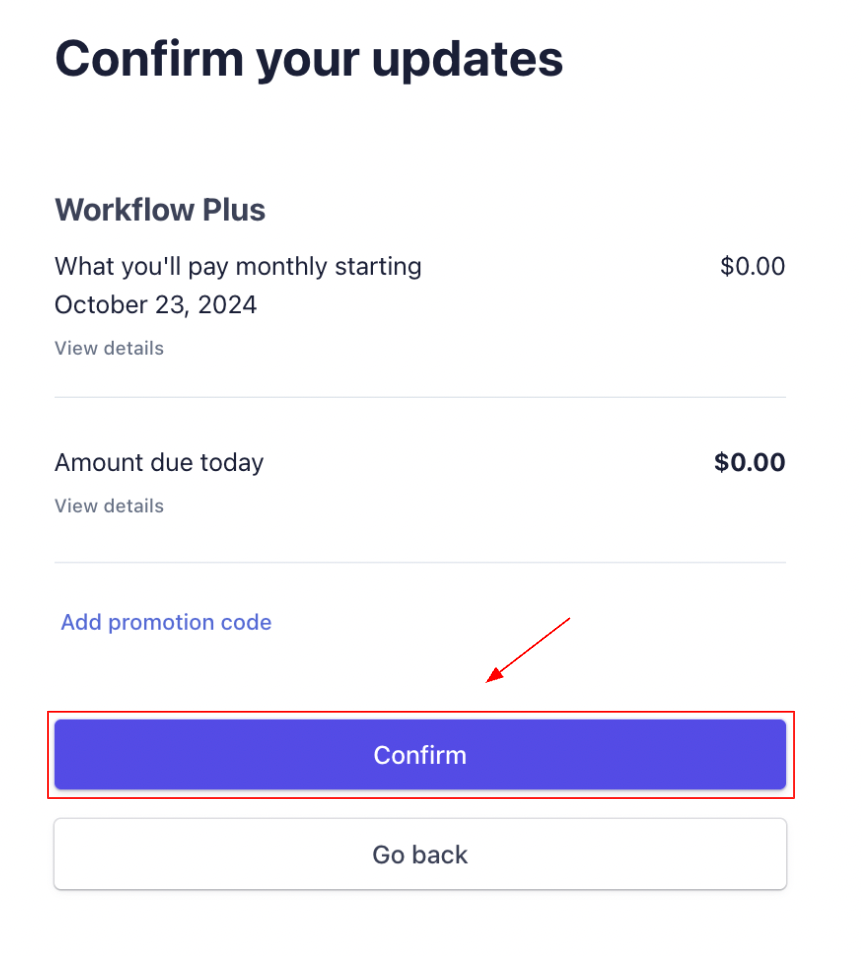
Step 4: Checkout
Click on "Confirm" to pay and finalize the purchase
Once you upgrade to SAGA’s higher subscription plan, you’ll unlock unlimited daily email sending—giving you the freedom to reach out to your network without limits and scale your communication effortlessly.
🚀 Ready to Start Broadcasting?
💬 Need Help?
If you need help or have questions:
Support Centre: Need help? Start a chat with the Fibi AI Agent in your SAGA. If they can’t help, a human team member will take over.
Book a Call: Schedule a demo with our team