Create a Beautiful Email Broadcast
Last updated 5 days ago
SAGA offers a drag‑and‑drop, no‑code email builder with 15+ responsive templates.
Fully supports merge tags, dynamic content, and cloud image hosting (CDN)
Designed for mobile responsiveness and looks great across different devices
🛠 Step 1: Create a New Broadcast & Choose a Starting Point
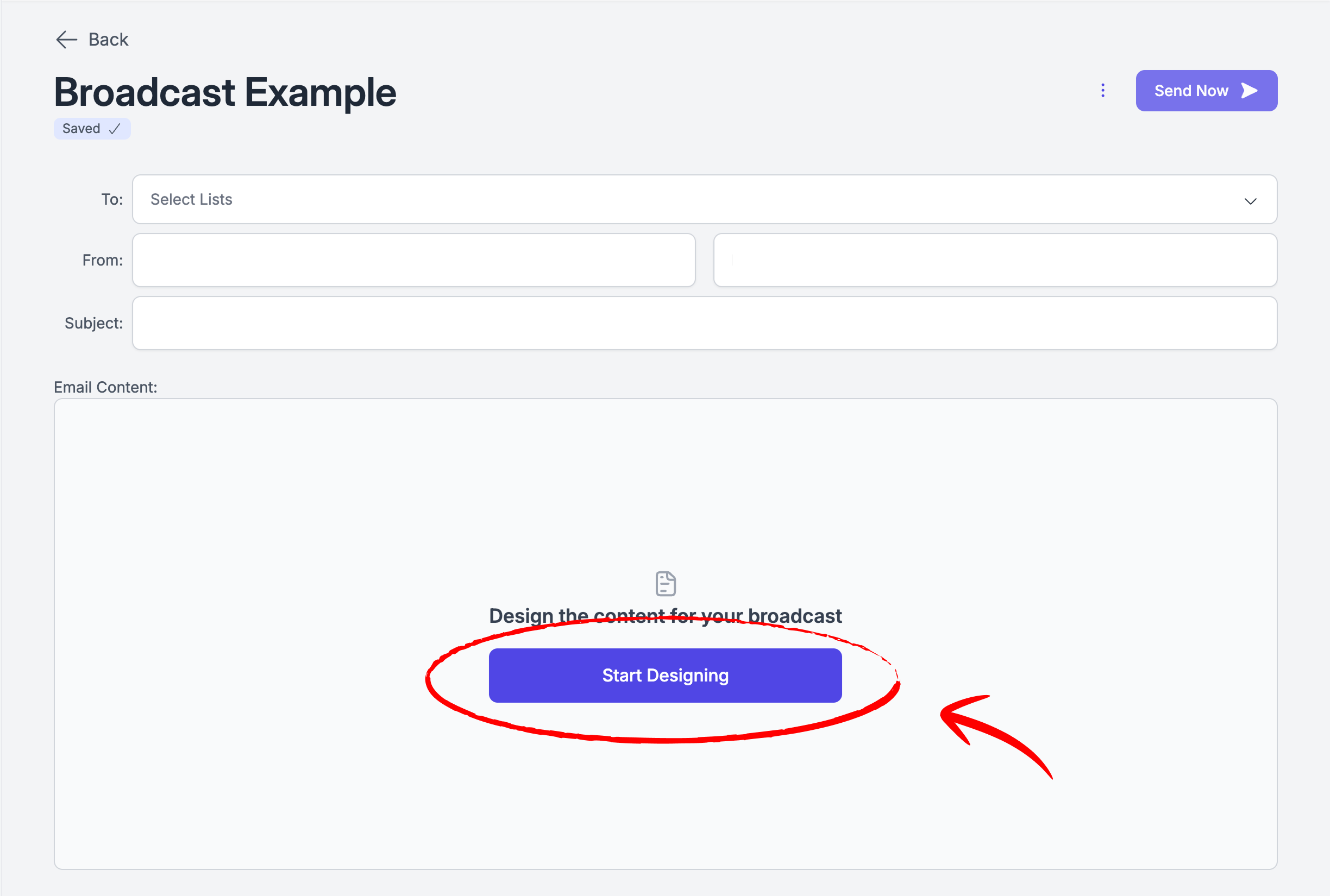
After creating a new Broadcast, you can start designing it.
Choose if:
Start from scratch – perfect if you want full creative control.
Choose a template – SAGA offers many professionally designed templates tailored to marketing, sales, events, and more. When you click on a template, you’ll be able to look at a preview, before selecting it.
Change your mind! - You can always change your mind, just click on “Change Template” in the bottom-left corner.
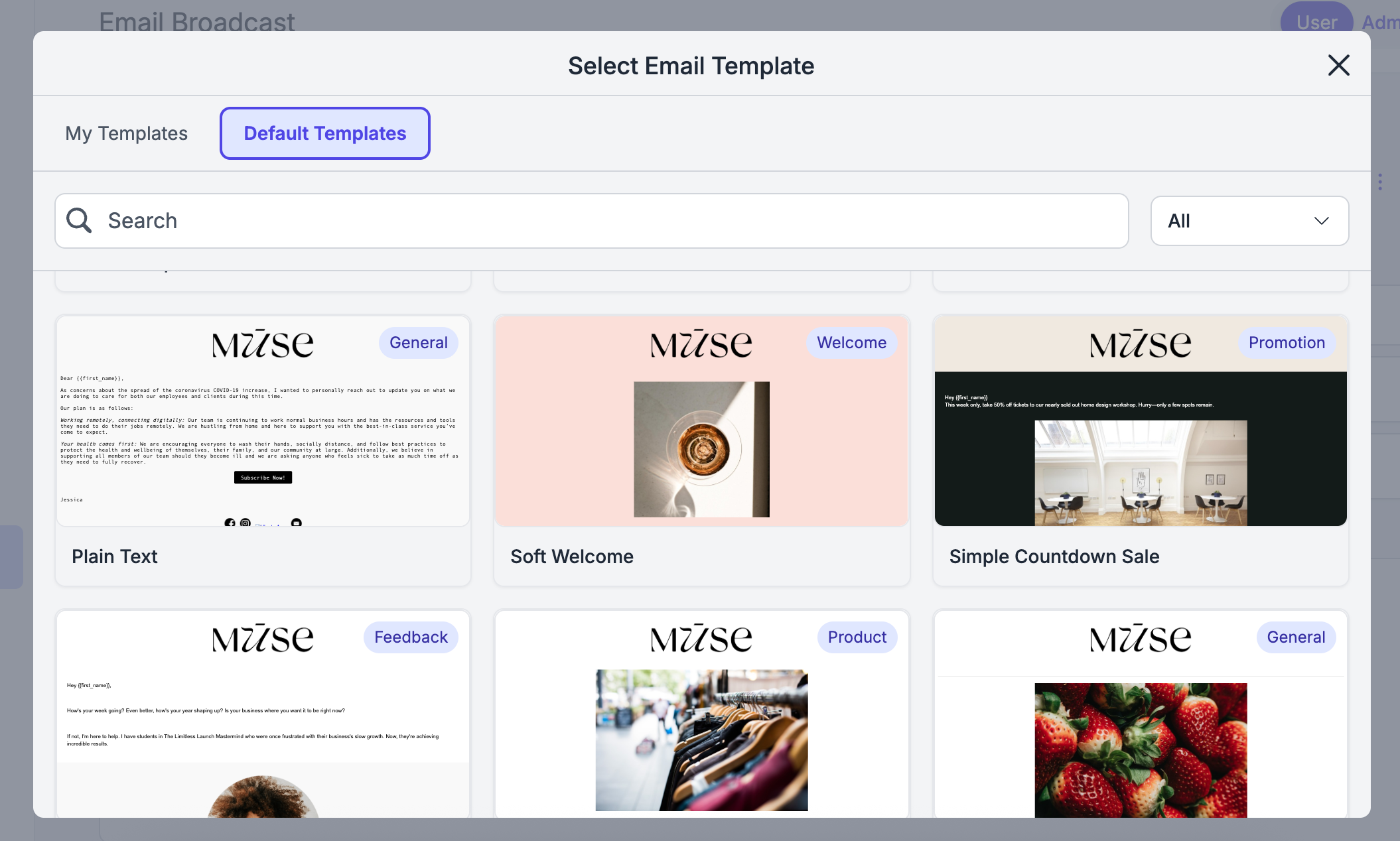
💾 Save time in the future: Once you're done editing your email, click “Save as Template” so you can reuse your best-performing designs anytime.
Step 2: Design with Blocks & Tools
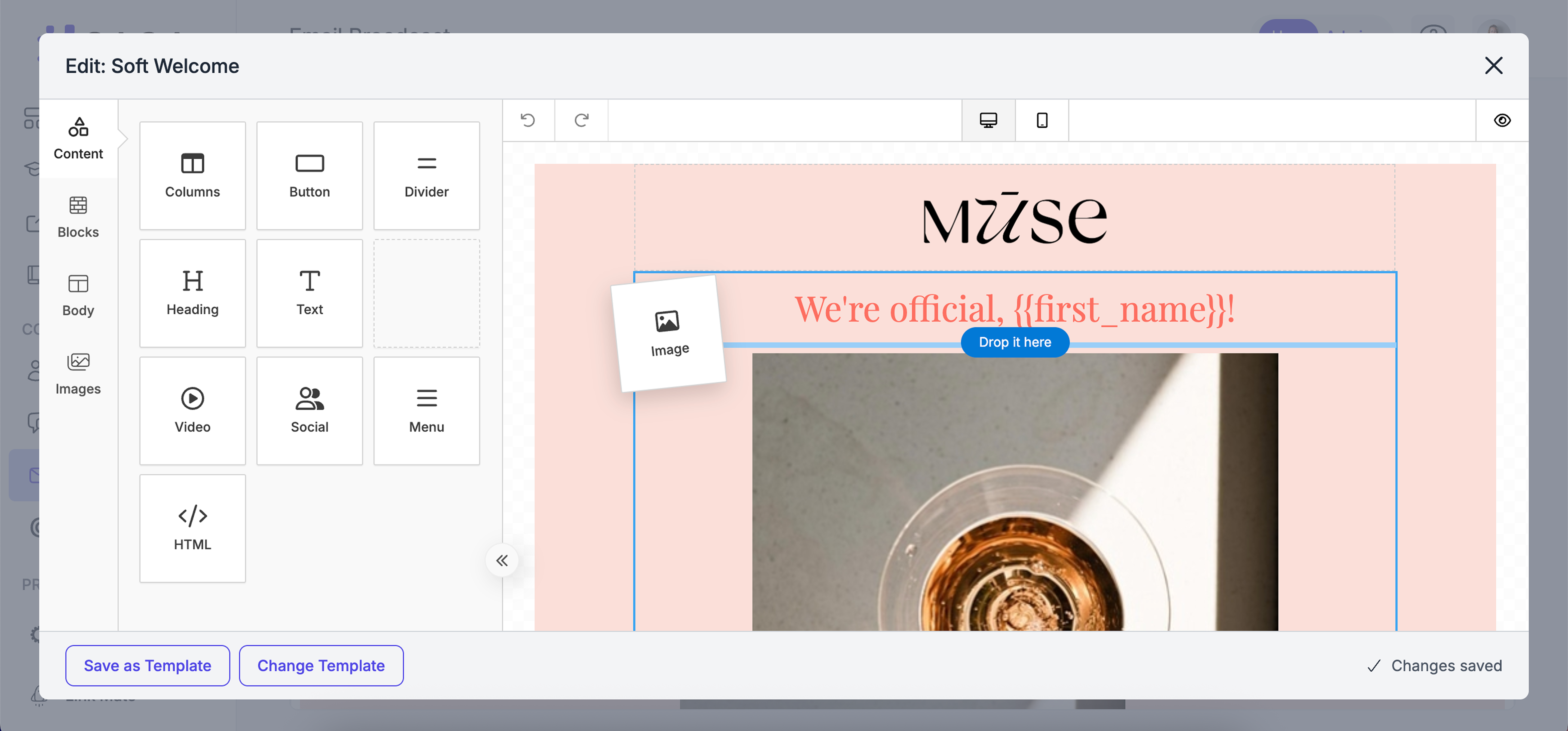
Drag blocks from the toolbar into your email:
Layouts: columns for visual structure
Headings/Text: craft compelling copy
Buttons: drive actions—e.g. “Join Zoom call” or “Claim your bonus”
Images/Stock: visuals that resonate with your audience
Social Icons: help grow your online presence
Video & Timer: embed media or urgency countdowns
🧭 Pro tips for network marketers:
Use merge tags to personalize (“Hi {{first_name}}…”)
Employ countdown timers for urgency: e.g. webinar start time
Use Booking Calendar merge tags to insert a booking link, so leads can schedule directly from the email — and turn buttons into booking links.
Maintain brand consistency: colors, fonts, logos—ideal for recruiting and recall
📱 Step 3: Best Practices
All templates are mobile responsive—but you can always preview in mobile view to be extra sure.
Keep your text–image ratio balanced (approx. 60/40) .
Single CTA focus: one primary, one secondary button max .
🧱 Step 4: Mastering the “Blocks” and “Body” Tabs in Unlayer
📦 BLOCKS:
The Blocks tab helps you define the structure of your email by setting how many columns a section has and how wide each column should be (using percentages).
Think of blocks as the scaffolding of your email—once the layout is set, you can drop your content into it.
🎨 BODY: Define Your Global Styles
The Body tab controls the overall design of your email. This helps keep your look consistent and professional.
🎛 Main Customization Options:
💬 Need Help?
If you need help or have questions:
Support Centre: Need help? Start a chat with the Fibi AI Agent in your SAGA. If they can’t help, a human team member will take over.
Book a Call: Schedule a demo with our team