Using the HTML Block in Info Pages
The HTML block is one of the most powerful and underused features in Info Pages. It lets you add custom elements that aren't available through the standard builder. And the best part? You don't need to know how to code.
Last updated 5 days ago
How to Add an HTML Block
Open your Info Page editor
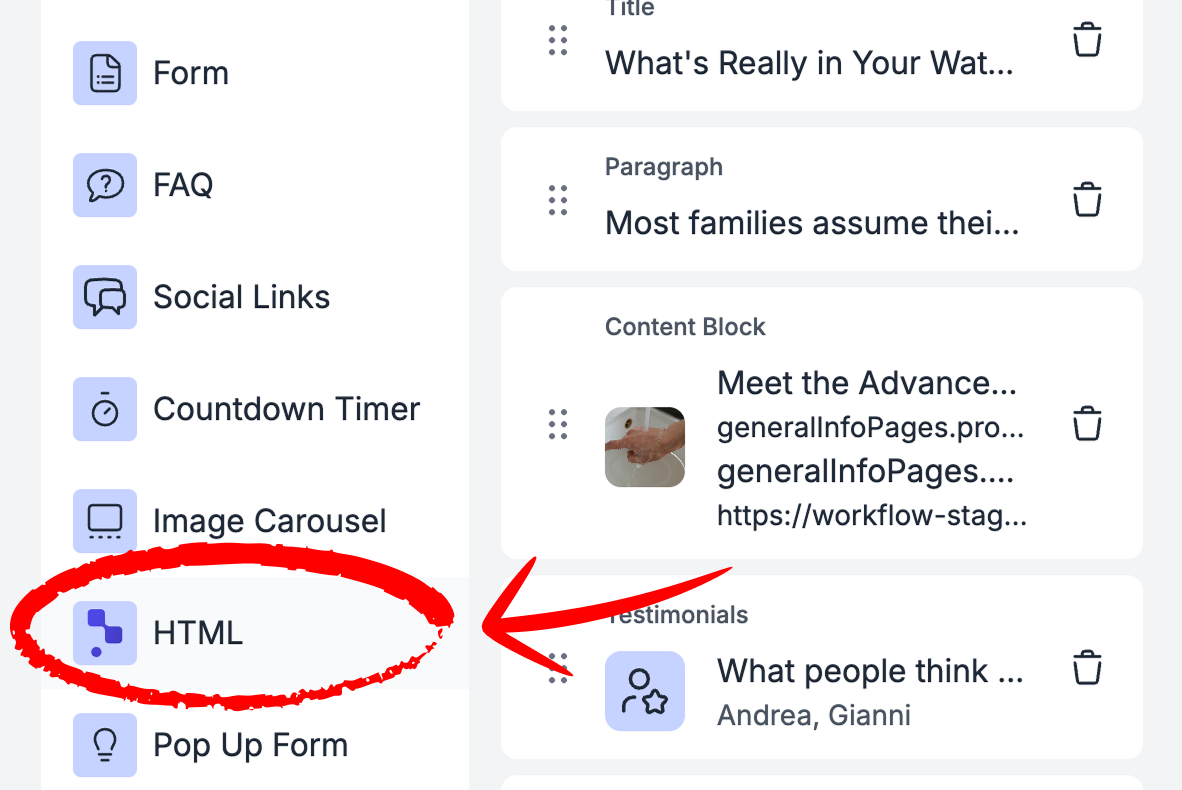
Scroll to the special blocks and select "HTML"
You'll see two options: use the built-in AI assistant, or switch to the HTML tab to paste code directly
✨ Two Ways to Generate Your Code
Option A: Use the Built-in AI Assistant
Inside the HTML block, there's a built-in AI assistant. Just describe what you want in plain language:
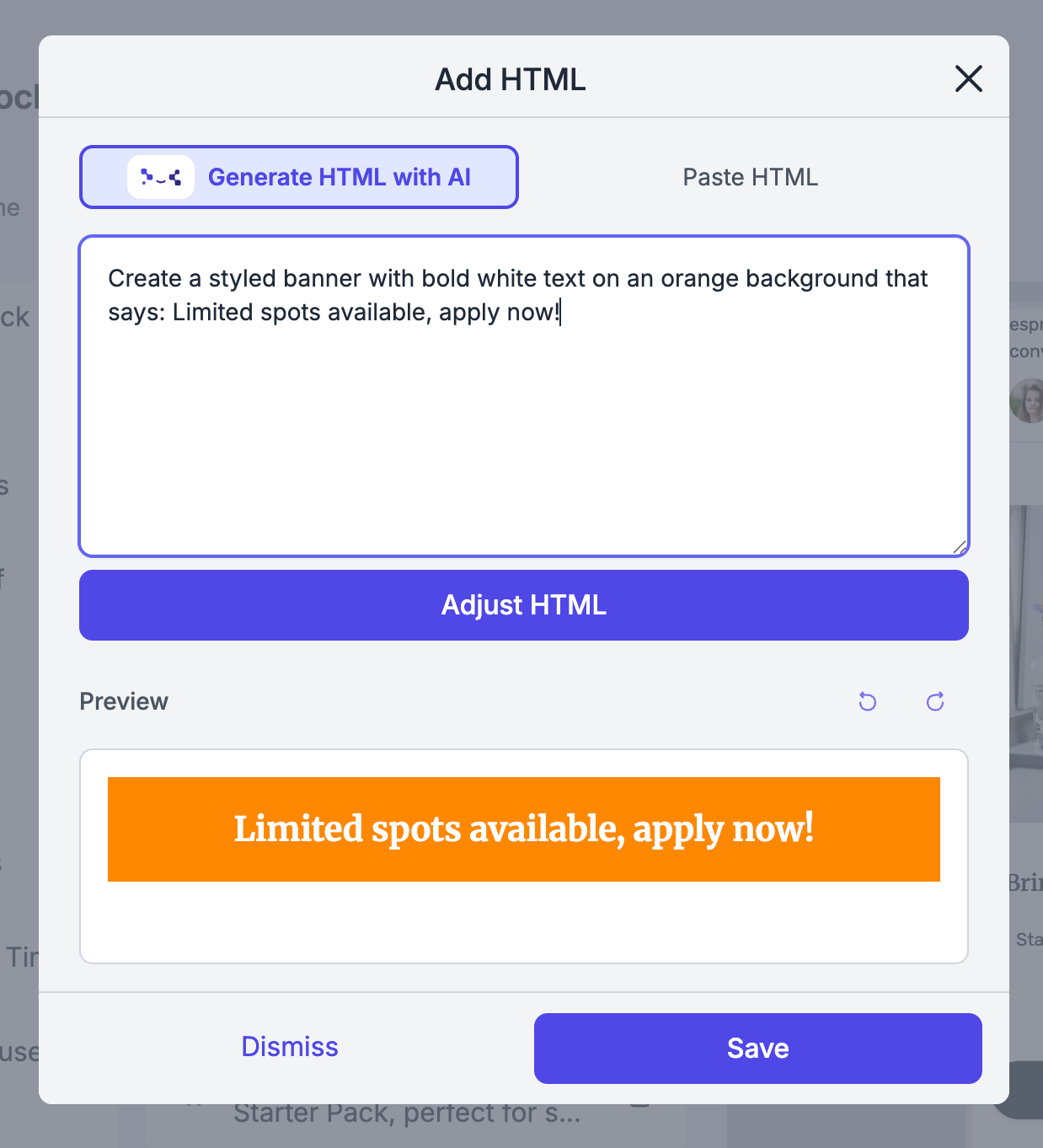
"Create a styled banner with bold white text on an orange background that says: Limited spots available, apply now!"
You’ll immediately see a preview of the final result in the block below!
Not quite right? Just ask it to adjust:
"Make the background darker" or "Add rounded corners"
When you're happy with the result, hit “Save”, and the block will be added to your page.
Option B: Use ChatGPT Externally
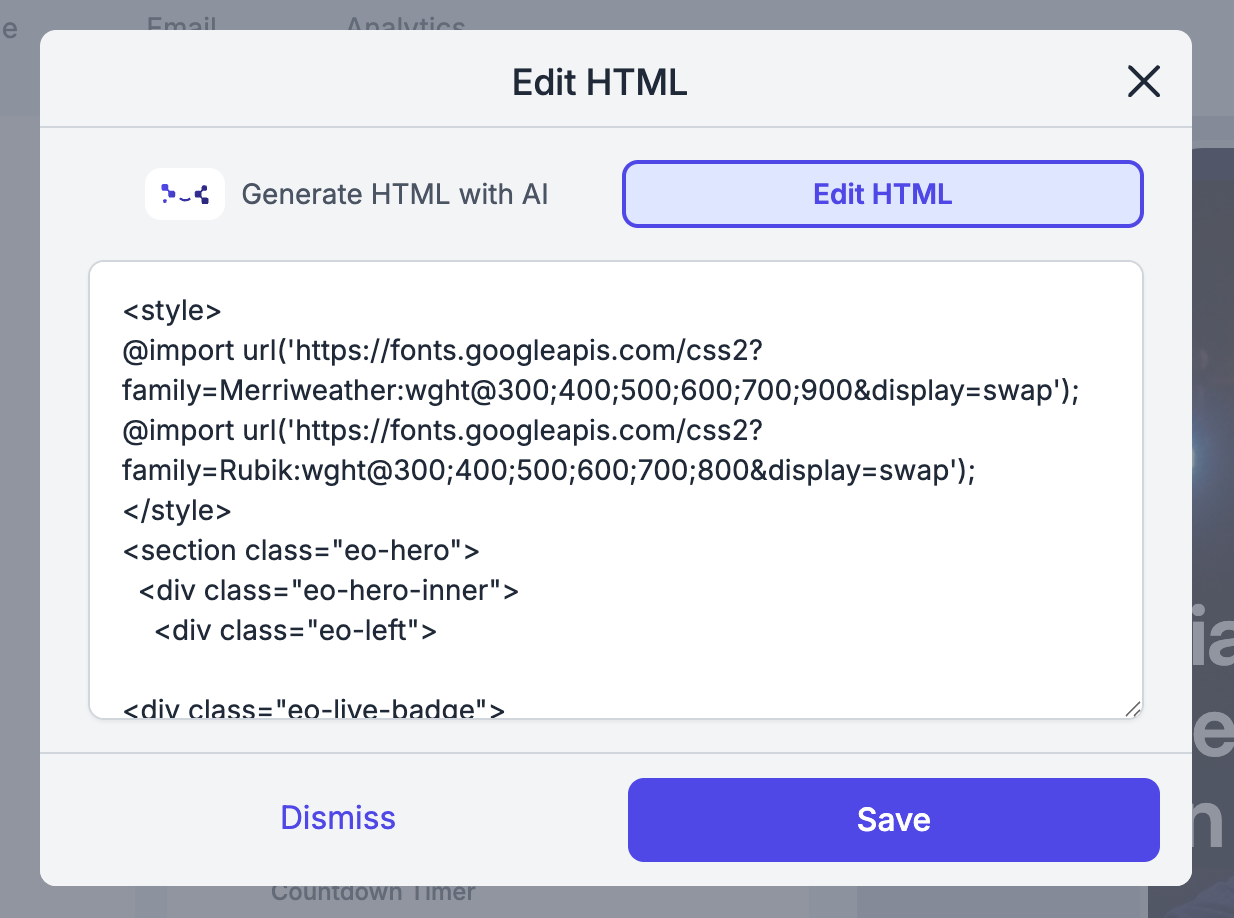
Go to ChatGPT and ask it to write the code for you:
"Write me a self-contained HTML + CSS snippet (no JavaScript) for [describe what you want]. It should be clean, mobile-friendly, and work as a standalone block on a page."
Then copy the result and paste it directly into the HTML tab.
💡 Something look off? Paste the code back into ChatGPT and say: "This isn't displaying correctly, can you fix it?" It will troubleshoot it for you.
🎨 Ideas: What Can You Add?
These are things you can't build with the standard blocks but are easy to create with the HTML block.
1. ⚡ Urgency Banner
A bold full-width banner to highlight a key message. Great for limited offers, deadlines, or important callouts.
Prompt to use:
"Create a full-width HTML + CSS banner with bold white text on a red/orange background that says: '🔥 Limited spots, apply before [date]'. Centered, no JavaScript."
2. 📊 Stats / Numbers Row
A clean row of 3–4 impressive numbers (like members, countries, years of experience). Much more impactful than writing them in a paragraph.
Prompt to use:
"Create an HTML + CSS stats row with 3 items: [500+ Members], [12 Countries], [5 Years]. Large bold numbers, small label underneath, evenly spaced, mobile-friendly."
3. 🏅 Trust / Guarantee Badge
A badge-style element that builds credibility, like "100% Free to Join" or "No Experience Needed".
Prompt to use:
"Create an HTML + CSS trust badge with a shield icon, bold headline '100% Free to Join', and a short subtitle: 'No experience needed, we'll guide you every step'. Centered, green and white."
4. 🎨 Section Divider with Title
A colour gradient band to visually separate sections of your page and add a professional touch.
Prompt to use:
"Create a full-width HTML + CSS gradient divider in purple and blue, with centered white text that says 'Why People Choose Us'. Clean and modern."
5. 🗺️ Embedded Map
If you have a physical location or event venue, embed a Google Map directly into your page.
How to get the embed code:
Open Google Maps and search for your location
Click Share then Embed a map and copy the HTML
Paste it into the HTML tab of your block
📊 Add a Meta Pixel to your Info Page
The Meta Pixel block lets you connect your Info Page to Meta without adding custom code. Instead of pasting the Meta Pixel script into an HTML block, you can now use a native block built specifically for this setup.
This is the recommended setup if you want to track page views, build audiences, and measure conversions from your Info Pages.
What it does
PageView always fires when the published page loads
An optional custom event fires if you provide an event name
The page preview does not fire the pixel
Step 1: Get your Meta Pixel ID
Open Meta Business Manager and sign in
Go to Events Manager
Select your pixel under Data Sources
Copy the Pixel ID
If you do not have a pixel yet, create one first in Meta before returning to your Info Page.
Step 2: Add the Meta Pixel block
Open your Info Page editor
In special blocks, choose Meta Pixel
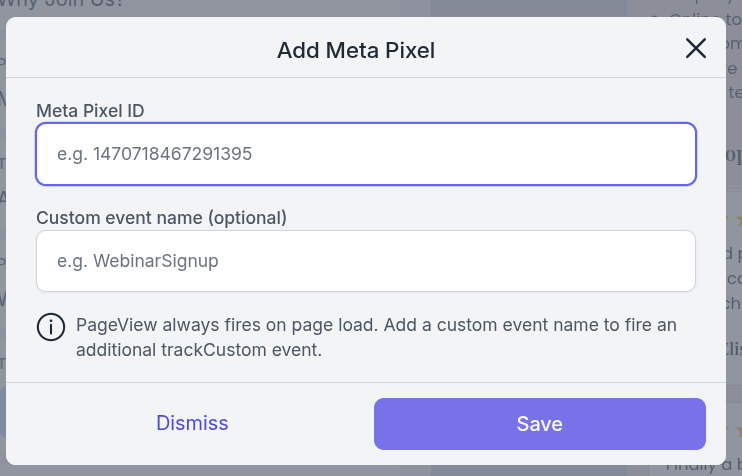
Paste your Meta Pixel ID
Optionally add a Custom event name
Save the block and publish your page
You no longer need to add an HTML block or paste Meta Pixel code manually.
Step 3: Choose when to use a custom event
If you leave the custom event field empty, the page will still send a PageView event when it loads.
If you fill in a custom event name, the page will send both:
PageView
your custom event
This is useful when you want to distinguish key outcomes such as registrations or completed signups.
Example: Webinar funnel
A simple setup is to use two different Info Pages:
Landing page: add the Meta Pixel block with only your Pixel ID. This tracks standard page visits with PageView.
Success page: add the same Pixel ID and set the custom event name to
WebinarRegistrationSuccess.
That way, Meta can track both interest and successful registrations separately.
Step 4: Verify it is working
Install the Meta Pixel Helper Chrome extension
Visit your published Info Page
Confirm the pixel fires as expected
Remember that preview mode does not trigger the pixel, so always test on the published page.
⚠️ A note on privacy
If you use Meta Pixel, make sure your page and legal documents explain that tracking is in use. This helps you stay aligned with privacy requirements such as GDPR.
📊 Tracking conversions in Meta
Once your Meta Pixel block is set up and your published page is firing events, you can create a Custom Conversion in Meta to measure and optimize outcomes.
Step 1: Open Events Manager
Open Meta Events Manager
Select your pixel
Click Create → Custom Conversion
Step 2: Configure the conversion
Name: choose a clear name
Data Source: select your pixel
Action Source: keep it as Website
Event: choose the event you want to optimize for
For example, if your success page sends WebinarRegistrationSuccess, you can use that as the event for your conversion.
Step 3: Save and test
Create the conversion in Meta
Use Test Events to verify it appears
Use that event in Ads Manager when optimizing campaigns
💬 Need Help?
If you need help or have questions:
Support Centre: Need help? Start a chat with the Fibi AI Agent in your SAGA. If they can’t help, a human team member will take over.
Book a Call: Schedule a demo with our team