Get the best out of our Scripts
Scripts are short text blocks you can save, organize, and share to make communication with prospects fast, consistent, and effective. Whether you're sending onboarding instructions, sales messages, or follow-ups — scripts save time and help you stay on message.
Last updated 5 days ago
📌 What Are Scripts?
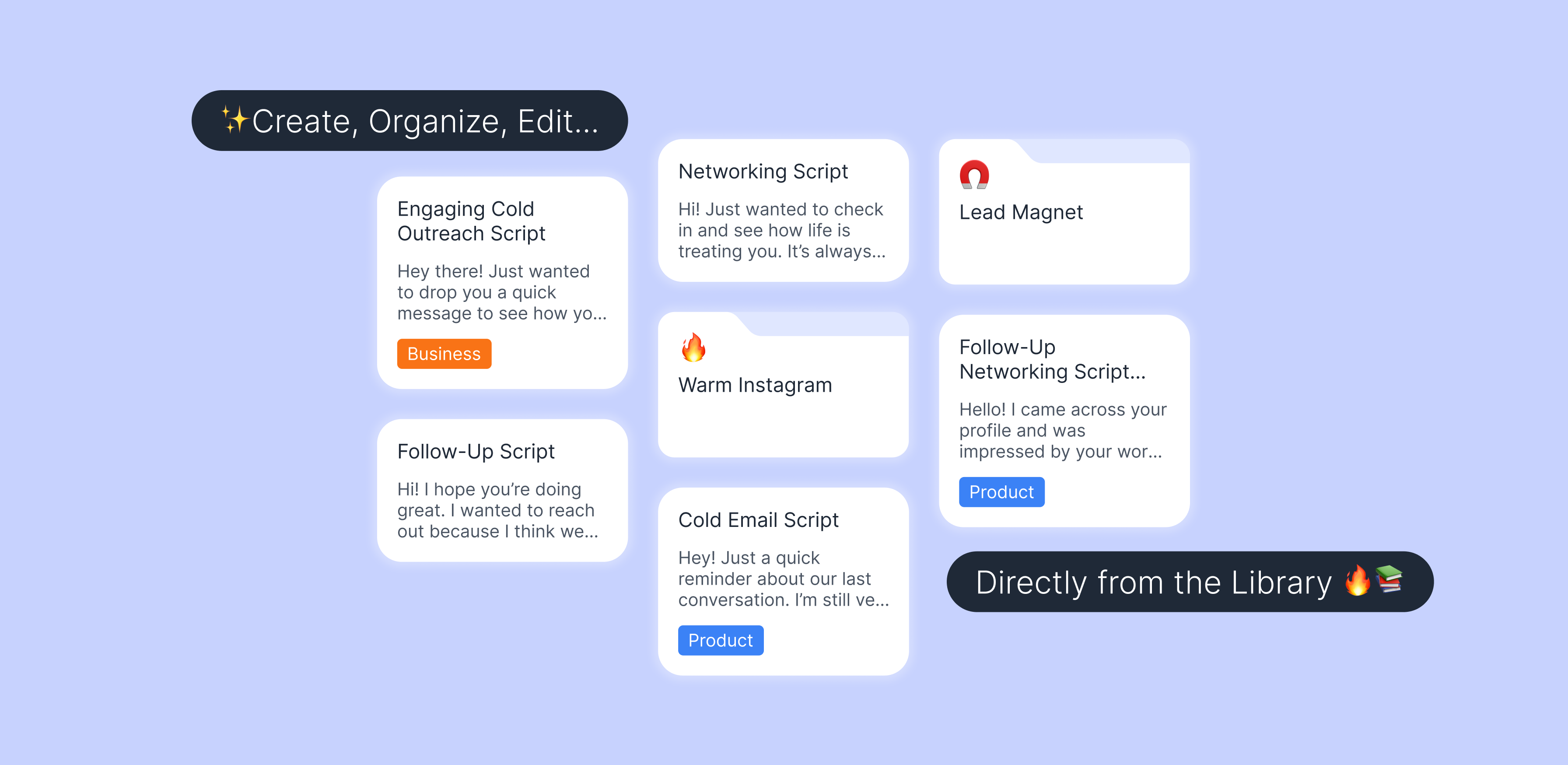
Scripts are text-based messages stored inside your Library. They’re typically used alongside media when sharing resources with prospects.They help you stay fast, consistent, and effective in your communication.
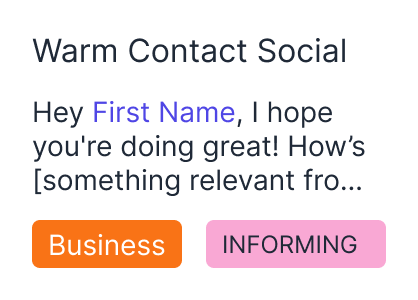
Each script includes:
A title (used for search/navigation)
The message body
Optional description or step label (e.g. “Connecting” or “Launching”)
➕ How to Create a New Script
You can create scripts only inside your Personal Library:
Click “Add New”.
Select “New Script”.
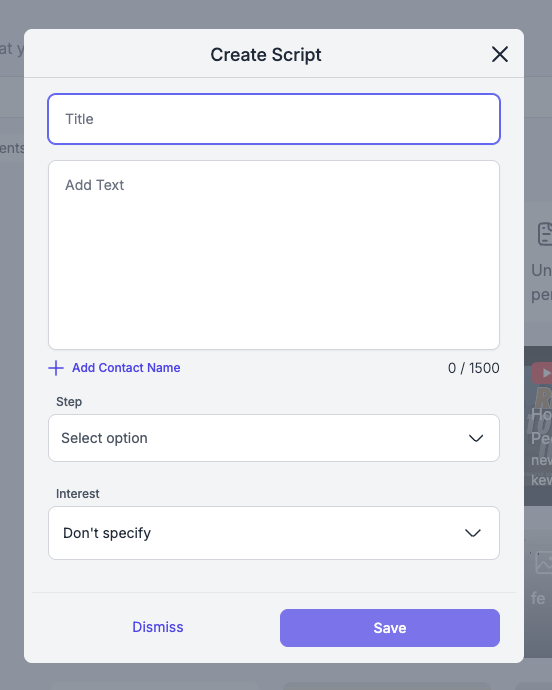
Fill in:
Title – Make it searchable and specific (e.g. “Demo Follow-up – SaaS”)
Text – The message you want to save.
(Optional) Step Tag
(Optional) Interest Tag
Click Save — your script is now ready to use.
You can only edit scripts that you created in your Personal Library.Team or default scripts can’t be edited.
🧠 Personalize Your Scripts with Smart Tags
Want your scripts to feel more personal?Now you can automatically include your contact’s name in the message — no need to type it out every time.
Here’s how:
While editing a script, look for the “Add Contact Name” button near the text field.
Click it, and a smart tag, like [Contact First Name], will appear.
Place it anywhere in your script — the contact’s actual name will show up automatically when you send it from their page.
✨ This makes your outreach feel more human, without the extra work.
🔍 How to Find Scripts
Whether they're yours or from your team, scripts are easy to find:
Use the Search Bar to search by title or body content.
Browse by folders (e.g., "Prospecting", "Education", etc.).
Use Favorites to quickly access the ones you use most.
⭐ Marking Scripts as Favorites
To mark any script — yours or a shared one — as a favorite:
Click the star icon beside the script.
It will now appear in your Favorites section at the top of your Personal Library for quick access.
📁 Organizing Scripts by Folder
You can organize scripts into folders based on purpose, audience, or strategy.Here’s a simple structure to get started:
🔎 Prospecting
📚 Educational
📌 Folders are especially useful when combined with emojis and step descriptions for quick visual reference.
🔗 Sharing Scripts with Prospects
Scripts are designed to be shared. Here's how:
Open a contact.
Go to the “Resources” tab.
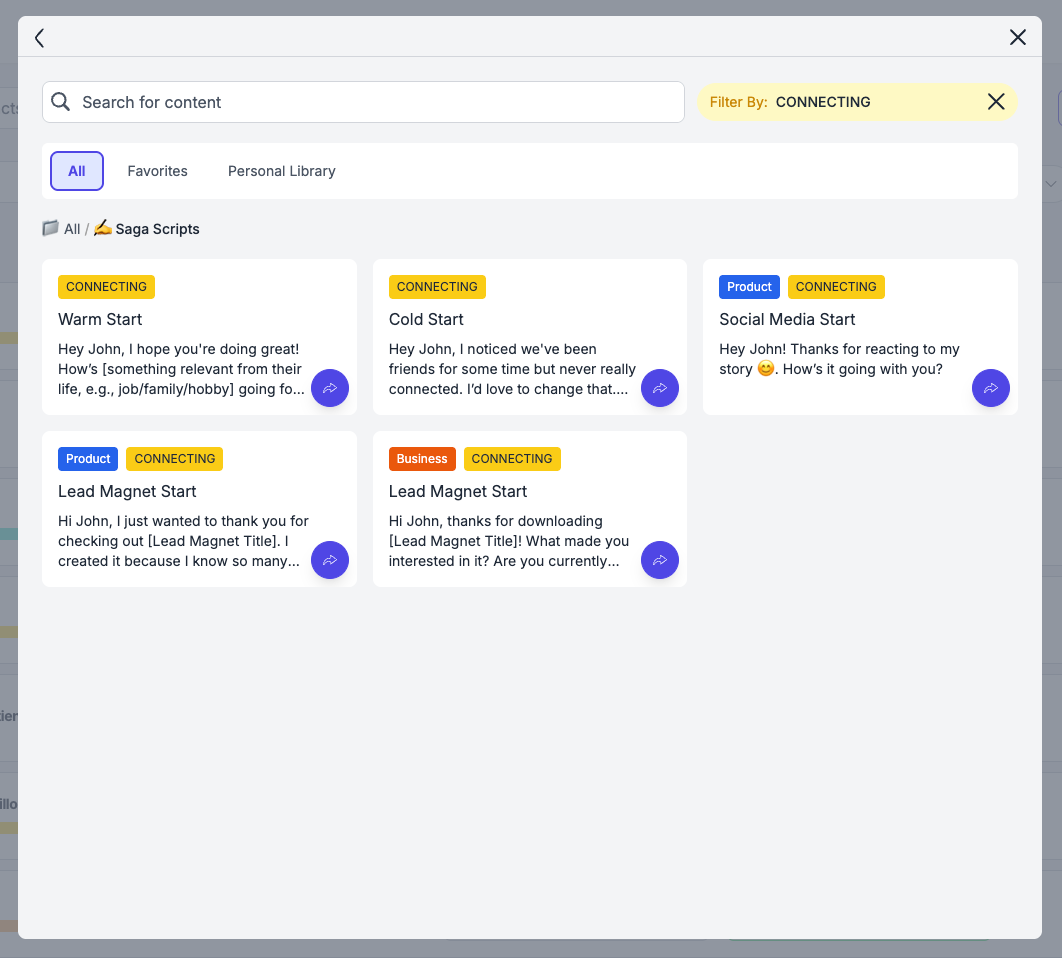
Click the "Share Script" button. You’ll be able to browse all available scripts in the library — filtered by step labels.
Once selected, the script will appear in the chat ready to send. ✏️ Need to tweak it? You can still edit the script before sending it in the chat.
You can also copy the script and paste it directly into the conversation.
💡 Tip: Keep your scripts organized with clear folder names and descriptive titles — it’ll make finding the right one quick and effortless.
💬 Need Help?
If you need help or have questions:
Support Centre: Need help? Start a chat with the Fibi AI Agent in your SAGA. If they can’t help, a human team member will take over.
Book a Call: Schedule a demo with our team