Settings
Manage all your account and prospecting preferences from one place. This page brings together prospecting tools, personal account settings, and optional affiliate features—organized into clear tabs so everything is easy to find and update.
Last updated 5 days ago
All your settings are now grouped into one single page, organized into tabs. This makes setup faster, clearer, and easier to manage—without jumping between different pages.
You can access Settings anytime. On desktop, click Settings at the bottom of the left menu. On mobile, tap your profile picture in the top right, then Settings.
Tab 1: Prospecting Settings
Your control hub for Lead Magnet, Info Pages, and Link Mate. Learn how to set up your nickname, profile information, bundle links, and social media connections. Information configured here applies to all prospecting tools.
Profile Information
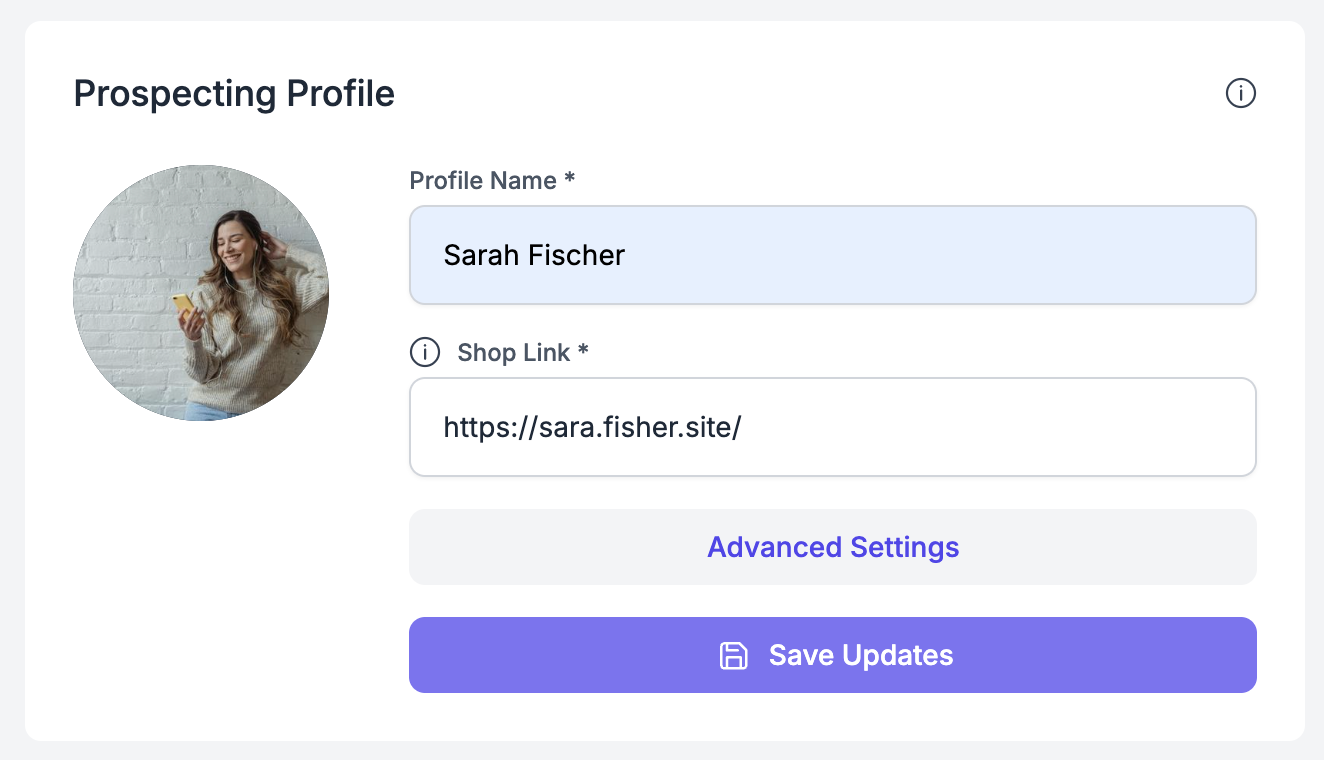
Step 1: Profile Information
Enhance your profile by
Adding / editing your profile image
Your Profile Name
Shop Link for quick purchases
Advanced Settings: URL NicknameWhen you first sign up, you’ll choose a URL nickname—this is like your personal ID on Saga. It becomes part of the link you’ll use to share your tools and content. For example:
Your LinkMate:
https://linkmate.one/yourlink_nicknameA resource from your media library:
https://linkmate.one/yourlink_nickname/resource
This nickname helps make sure everything you share is clearly connected to you—your Saga profile, your contact info, your social links, and more. That’s why, once you start sharing your link, we strongly recommend not changing your nickname, cause it might confuse your leads.
So pick something simple and recognizable—and stick with it!
Manage Your Social
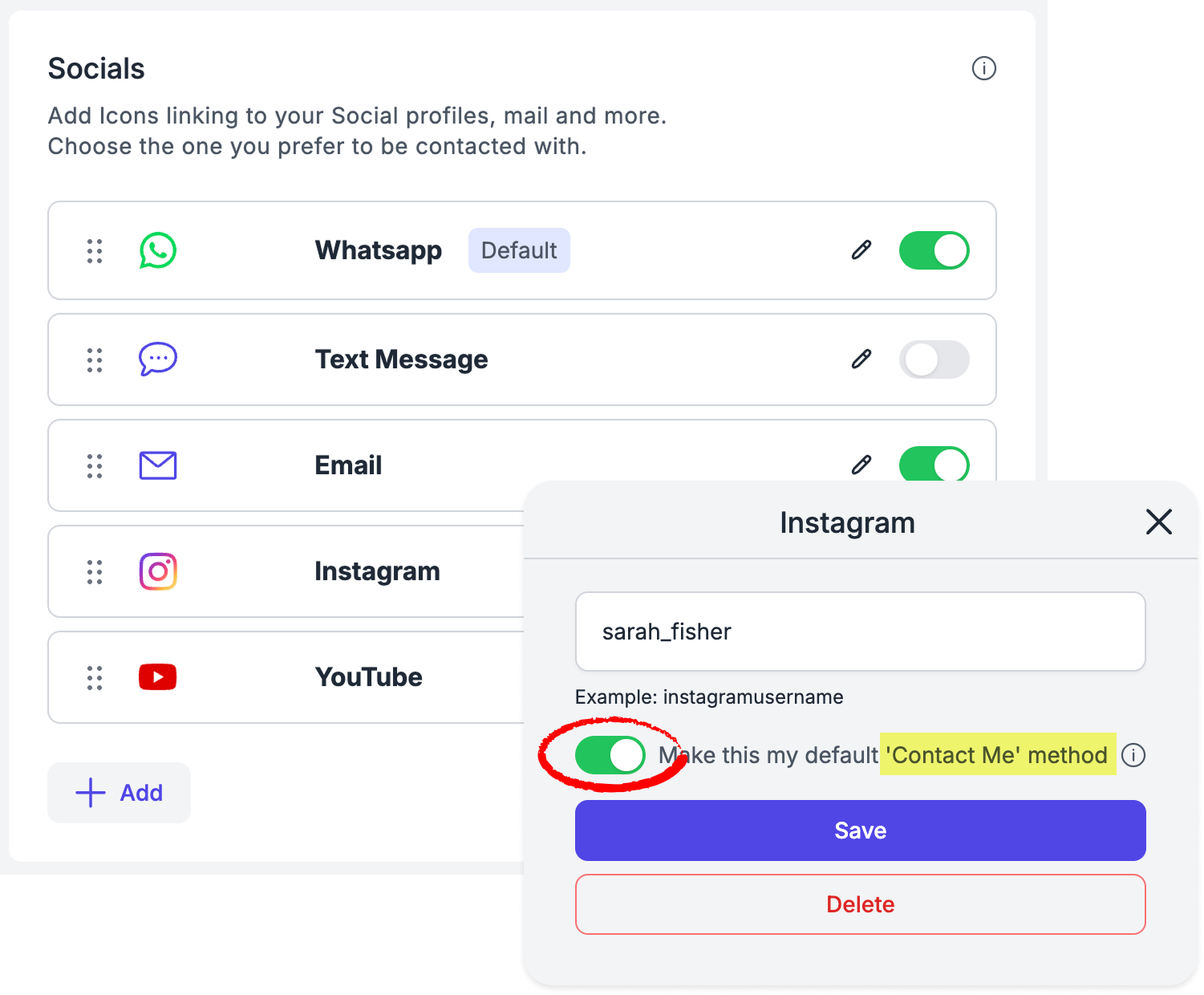
Add the links to all your social channels (Instagram, Telegram, WhatsApp, etc.)
Choose which one you want as your default contact channel. This is where the “Message Me” button will send your leads.
👉 Your selection will automatically apply across all your prospecting tools—like Link Mate and Lead Magnets.
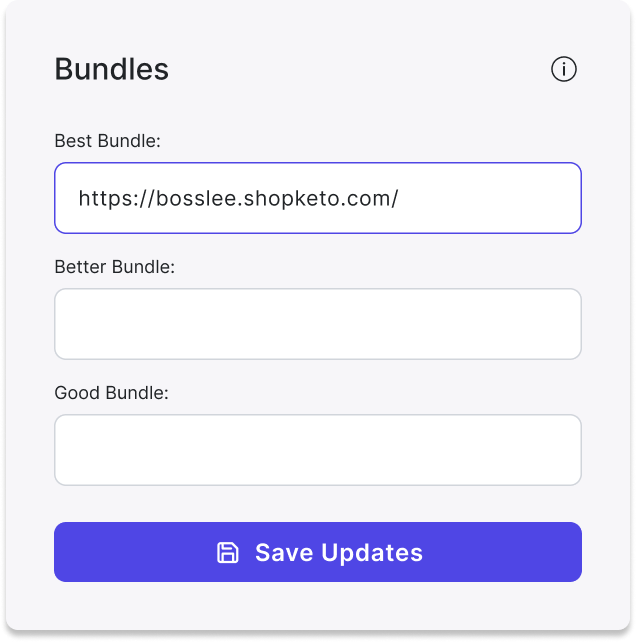
Step 3: Add your Bundles's Links (Optional)
Share links to your bundles to effectively showcase your products or services. Adding your bundles' links boosts your chances of converting potential leads into customers. If your organization doesn't have bundles, you won't see them.
Customize Your Contact Form
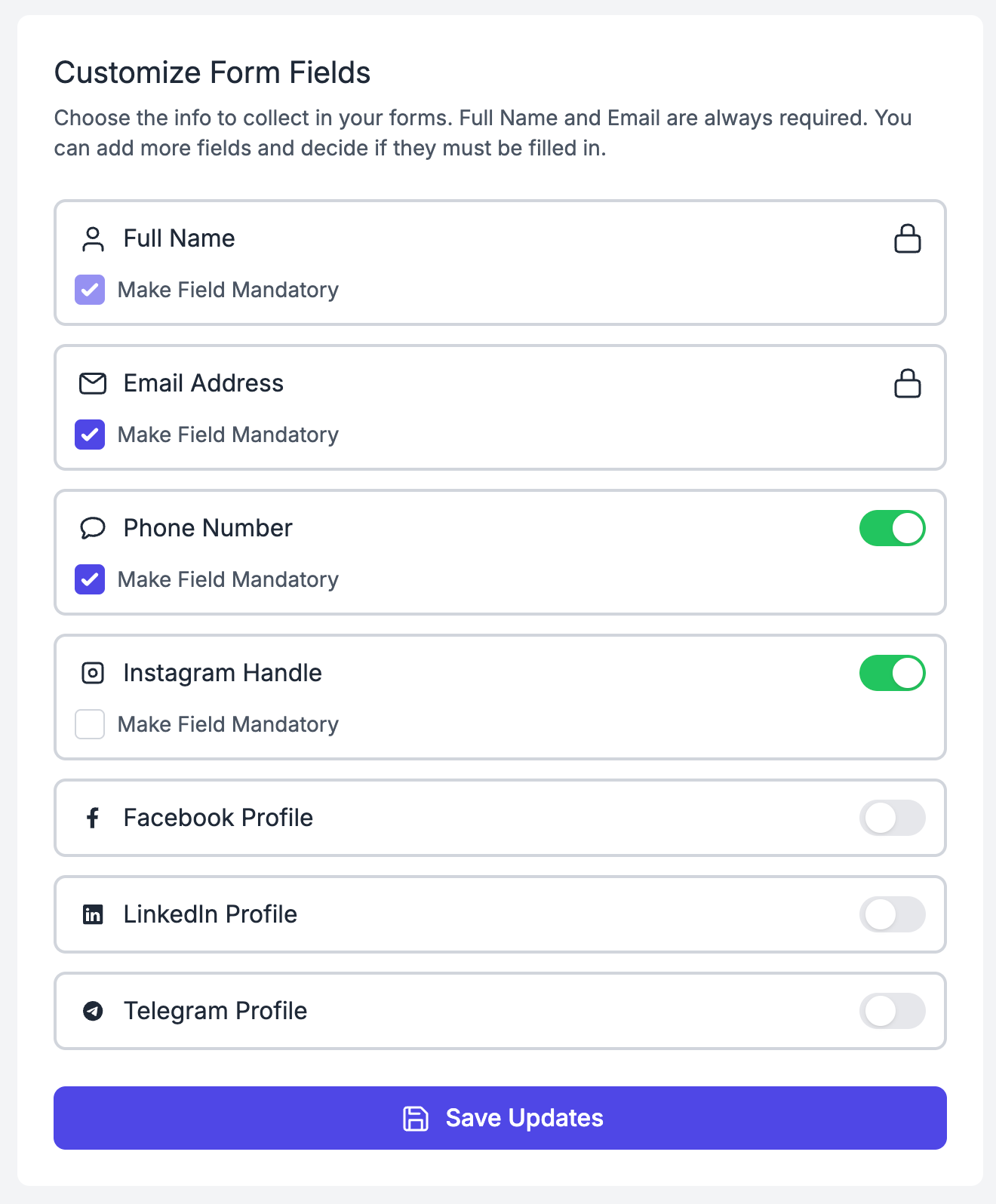
Step 4: Customize Your Lead Form
Choose which fields appear in your contact form and which ones are mandatory: Name, Email, Phone number, Instagram handle…
You’re in full control of what information you collect and what your leads must fill in before submitting the form.
Tailor the form based on how you usually connect with your leads. For example, if you mostly chat via Instagram, make sure the Instagram field is included.
👉 Your form setup will automatically apply across all your prospecting tools—like Link Mate and Lead Magnets.
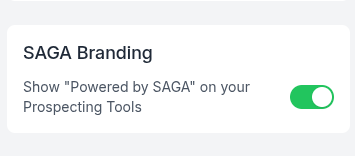
Edit your SAGA Banner
SAGA Branding Logo
In this section, you can choose whether to display the “Powered by SAGA” banner on your prospecting tools.Turning the switch on will show the log of SAGA, while turning it off will remove it.
Please note:Branding customization may vary depending on your subscription plan. Some plans allow you to remove SAGA branding, while others keep it enabled by default.
🚀 Ready to Get Started?
💡 Keep it Fresh
As you set up your prospecting settings, remember to keep them updated regularly. Relevant information enhances your effectiveness in engaging potential leads.
Tab 2: Personal Settings
Manage your personal account preferences.
Here you can:
Update First Name, Last Name, and Email
Connect your calendar (Google, Outlook, or Apple) with SAGA
Once connected, click the 📆 icon next to an event to display it
Turn notifications on or off
Note: Notifications must be enabled separately on each device
Enable or disable “Use WhatsApp App”
When enabled, WhatsApp links open directly in the app instead of the browser
Tab 3: Billing
View, update, or cancel your subscription at any time. Manage your plan, payment details, and billing information with full control.
👉 For full details, look at the dedicated page.
Tab 4: Affiliate Program (Optional)
This tab is available depending on your subscription plan.
If enabled, you can:
Activate your affiliate link
Share it easily
Track how many people joined through your link
Learn about rewards and prizes
👉 For full details, look at the dedicated page.
💬 Need Help?
If you need help or have questions:
Support Centre: Need help? Start a chat with the Fibi AI Agent in your SAGA. If they can’t help, a human team member will take over.
Book a Call: Schedule a demo with our team